Trip Log
Choose the columns for your trips, such as locations, times, odometer and cargo, then print the trip log or download it as CSV. Road trip, delivery, business and family layouts are ready.
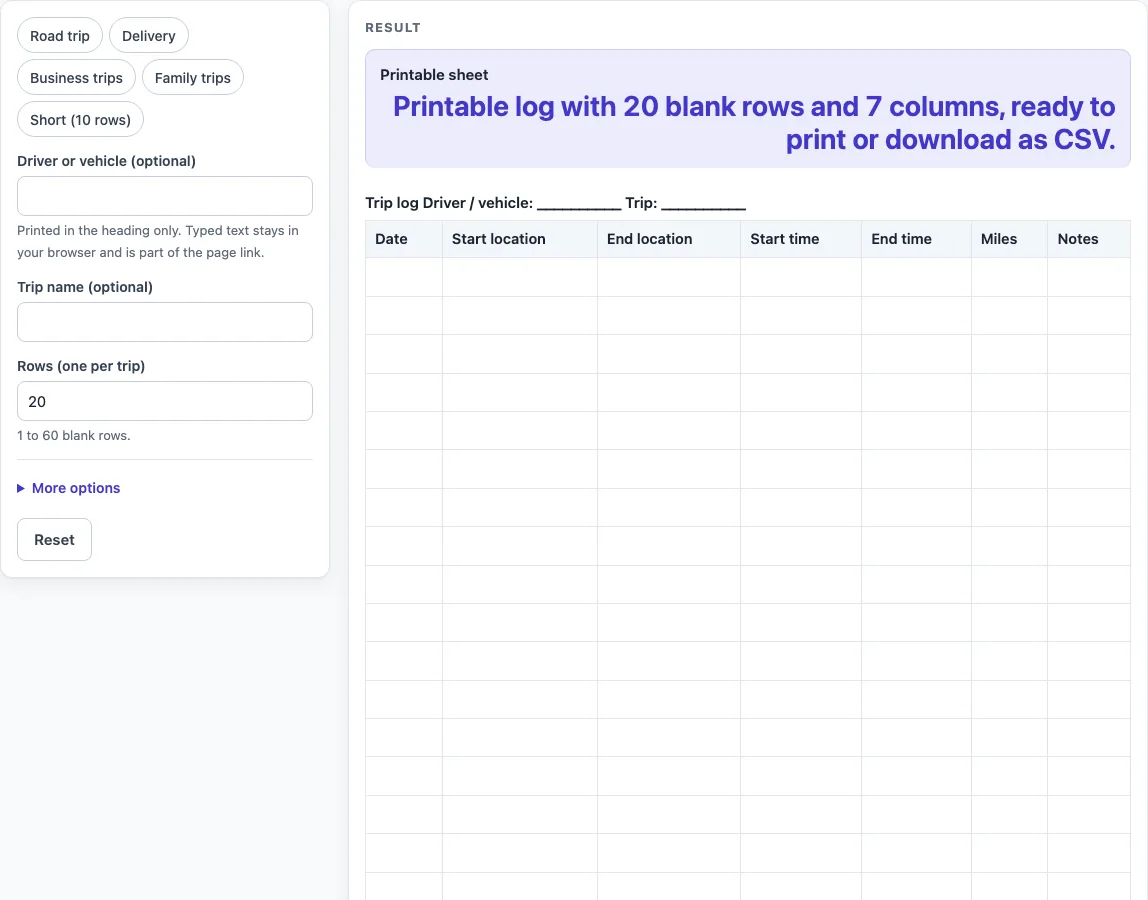
How to use the Trip Log
Type a name in “Driver or vehicle (optional)” and “Trip name (optional)”. They replace the blanks in the heading “Trip log Driver / vehicle: __________ Trip: __________”. Typed text stays in your browser and is part of the page link.
Set “Rows (one per trip)” from 1 to 60; each blank row is one trip. Above 60, the sheet uses 60 and shows a warning. Zero gives the error “Rows (one per trip) must be at least 1.” Text or an empty field gives “Enter a number for Rows (one per trip).”
Pick a preset if one fits: “Road trip”, “Delivery”, “Business trips”, “Family trips” or “Short (10 rows)”. You can still change the settings afterwards.
Open “More options” to switch columns on or off: “Start location column”, “End location column”, “Start time column”, “End time column”, “Start odometer column”, “End odometer column”, “Miles column”, “Passengers / cargo column”, “Purpose column” and “Notes column”. Date is always on. The odometer, Passengers / cargo and Purpose columns start off.
Check the “Printable sheet” result. With the defaults it reads “Printable log with 20 blank rows and 7 columns, ready to print or download as CSV.”
To print, use the Print button. The print view shows the heading and the bordered table on US Letter or A4 portrait, in black and white.
Or select “Download as CSV (opens in Excel)” to save the same table.
What is a trip log?
A trip log is a record that lists each trip on its own row, so you can see when a journey happened, where it started and ended, and what you noted about it. A blank sheet gives you the structure, and you fill in the details by hand or on screen.
The idea is simple: one trip, one row, and the same columns for every entry. That consistency makes the log easy to read later. It also means you can compare trips side by side without searching through notes or messages.
What should each column in a trip log hold?
Each column should hold one kind of fact, written the same way every time. The Date column records the day of the trip. Start location and End location record where you left and where you arrived, written in words you will recognise later.
Start time and End time record when the trip began and finished. Miles records the distance you drove or travelled for that trip. Notes is the place for anything that does not fit elsewhere, such as a reason for a stop or a problem on the road.
Some logs also use odometer readings. The Start odometer and End odometer columns hold the reading shown on the vehicle’s odometer at the beginning and end of the trip. The difference between the two is the distance, and you can work it out yourself, because this tool does not calculate it.
Passengers / cargo records who or what travelled with you. Purpose records why the trip was made, which is useful for a business trip or a delivery. Turn on only the columns you need, so the sheet stays easy to fill in.
A trip log is a general-purpose record. It does not decide what must be recorded for any particular job, tax year, or workplace. Your own rules or a qualified adviser should answer those questions.
What do the presets change?
The default sheet has 20 rows and the columns Date, Start location, End location, Start time, End time, Miles and Notes. “Road trip” uses 15 rows and swaps End time and Miles for Odometer start and Odometer end. “Delivery” adds Passengers / cargo and drops Notes. “Business trips” drops both time columns and adds Purpose. “Family trips” adds Passengers / cargo and drops Miles. “Short (10 rows)” keeps the default columns with 10 rows. With every column switched on, the sheet has eleven columns.
Worked examples
| Input | Result |
|---|---|
| 20 trip rows | 7 columns |
| 20 trip rows | 7 columns |
| 30 trip rows | 7 columns |
| 10 trip rows | 6 columns |
Calculated by the tool above; open it with the same values to see each step.
Frequently asked questions
Is this trip log free to use?
Yes. The tool is free, needs no sign-up, and runs in your browser. Nothing you type is saved or uploaded.
Does the tool add up my miles?
No. Nothing is calculated, and the table has no total row. Add the Miles column yourself, or use your own spreadsheet after you download the CSV.
How many trips can one sheet hold?
You can set “Rows (one per trip)” from 1 to 60. The default is 20 blank rows. Anything above 60 is cut to 60 with a warning.
Can I use this as an official or legal record?
The tool is a general-purpose template. It does not give legal, tax, medical, or HR advice, and it is not a certified form. If you need a record for a specific purpose, check the requirements for your own situation.
Can I save my trip log for later?
The tool does not save or upload your sheet. Typed text stays in your browser and is part of the page link. To keep a copy, print the sheet or select “Download as CSV (opens in Excel)”.
What happens if I need more than 60 rows?
The sheet stops at 60 rows and shows the warning “Rows (one per trip) is limited to 60, so the sheet uses 60.” To cover a longer period, print or download more than one sheet.
Related tools
- Mileage Log: Use it when your main concern is recording distance for each journey.
- Driver’s Daily Log: Use it when you want a record of each day’s driving rather than each trip.
- Car Maintenance Log: Use it to note service work and repairs on a vehicle.
- Fuel Log: Use it to track fuel purchases alongside your trips.
- IRS Mileage Log Template: Use it if you are looking for a mileage log layout that mentions the IRS.