Training Log
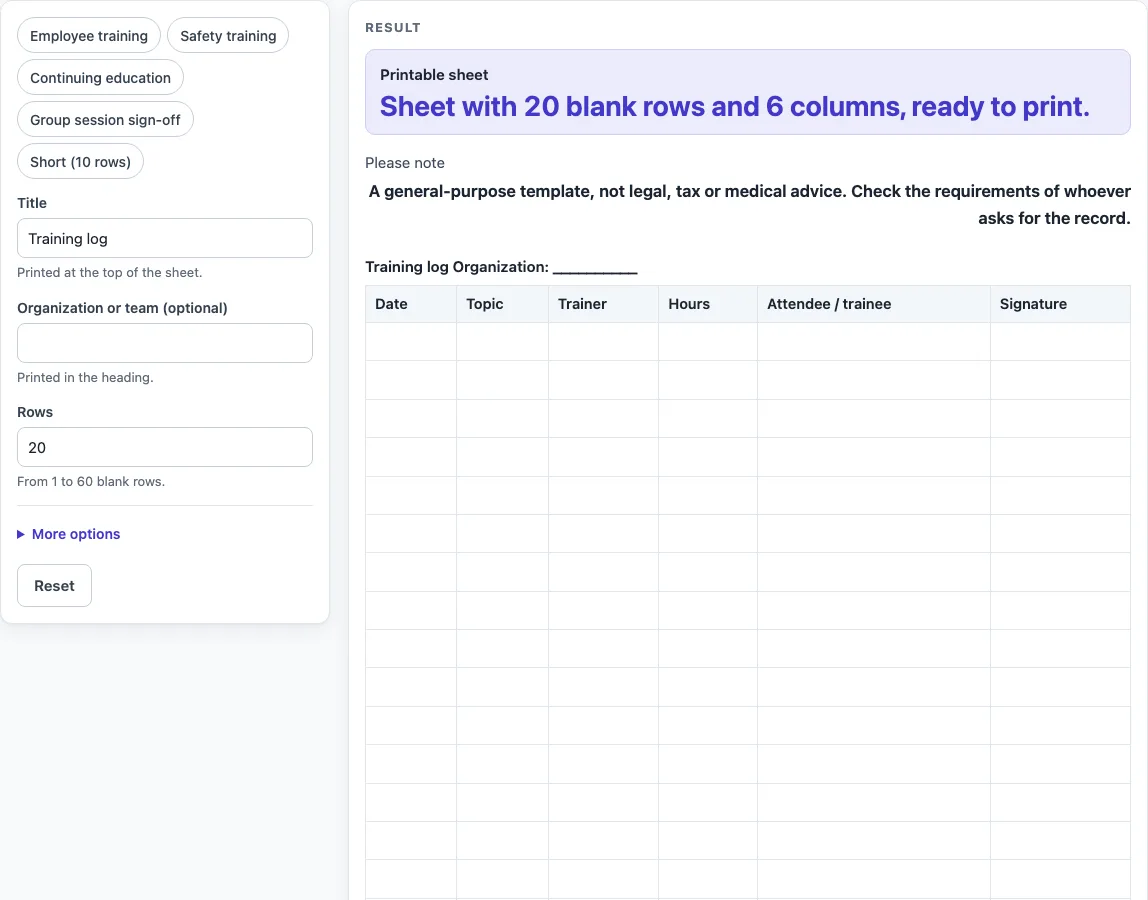
Pick the columns, set the number of rows and optionally add an hours total row, then print the training log or download it as CSV.
How to use the training log
- “Title” starts as “Training log” and is printed at the top of the sheet. Replace it with a title that fits, such as the name of your course.
- Type your organization or team name into “Organization or team (optional)”. If you leave it empty, the heading prints a blank line of underscores.
- Set “Rows” to the number of blank rows you need. It accepts 1 to 60. A number above 60 is cut to 60 with a warning, and 0, a negative number or text gives an error.
- Open More options. Switch “Trainer column”, “Hours column”, “Attendee / trainee column”, “Signature column” and “Notes column” on or off. Notes starts off, the others start on. Date and Topic are always there.
- If you want a total line, switch on “Add a total row for hours”. It adds an empty last row labelled Total, but only while the Hours column is shown. Nothing is added up for you.
- Choose “Print / save as PDF” to print the sheet or save it as a PDF.
- Or select “Download as CSV (opens in Excel)” below the table to save the same table as training-log.csv.
Five presets, “Employee training”, “Safety training”, “Continuing education”, “Group session sign-off” and “Short (10 rows)”, fill in a title, row count and column choices for you, and you can change them afterwards. Typed text is cut at 80 characters.
What is a training log?
A training log is a record that shows which training took place, when it happened, and who took part. It is usually a running list with one line per session, so anyone reading it can see what was covered and by whom. This tool gives you that list as a blank, printable table that you can fill in by hand or keep as a file.
What should each row of a training log record?
Each row should describe one training session, and the columns on this sheet cover the usual details. “Date” and “Topic” are always present, so every row says when the session happened and what it covered. “Trainer” names who led it, “Hours” records how long it lasted, and “Attendee / trainee” lists who took part. “Signature” gives a space for signing, and “Notes” is an optional column for anything that does not fit elsewhere.
How many rows does a training log need?
A training log needs enough rows for the sessions you expect to record on one sheet. Rows can be set from 1 to 60, so you can match the sheet to the size of a group or the length of a course. If you have more sessions than fit, print a new sheet and start it where the last one ended.
How do you total the hours in a training log?
The optional total row adds a labelled Total line at the bottom of the table, but the tool does not add the numbers for you. To find the total, add up the entries in the Hours column yourself, then write the result on the Total line. The total row only appears while the Hours column is on.
Can you keep a training log as a file instead of on paper?
Yes. Select “Download as CSV (opens in Excel)” to save the same table as training-log.csv. A CSV file stores the table as plain text with values separated by commas, so you can open it in a spreadsheet program and keep it in digital form.
What do the presets set?
“Employee training” gives a 20-row log titled “Employee training log”. “Safety training” gives 25 rows with the Notes column on. “Continuing education” gives 15 rows with only Date, Topic, Hours and Notes, plus a Total row, so the table has 16 rows. “Group session sign-off” gives 30 rows without the Hours column, titled “Training attendance log”. “Short (10 rows)” keeps the default columns with 10 rows. These are layouts of our own design, and they state no training requirement or hour count.
Worked examples
| Input | Result |
|---|---|
| 20 rows | 20 table rows, 6 columns |
| 15 rows | 16 table rows, 6 columns |
| 25 rows | 25 table rows, 6 columns |
| 12 rows | 13 table rows, 5 columns |
Calculated by the tool above; open it with the same values to see each step.
Frequently asked questions
Is this training log free to use?
Yes. It runs in your browser, nothing is stored or uploaded, and you do not need to sign up.
Does this training log count as an official or certified record?
No. It is a general-purpose template and does not state any training requirement, hour count or certification rule. The page shows this note: “A general-purpose template, not legal, tax or medical advice. Check the requirements of whoever asks for the record.”
What happens if I leave the organization box empty?
The heading prints “Organization:” followed by a blank line of underscores, so you can write the name by hand. The same applies to the title if you clear it.
Can I choose which columns appear on the sheet?
Yes, under More options. Date and Topic always print, while Trainer, Hours, Attendee / trainee, Signature and Notes can each be switched on or off.
How long can the title and organization be?
Typed text is cut at 80 characters, so keep the title short enough to print on one line.
What happens if I enter an invalid row count?
A number above 60 is cut to 60 and a warning appears. Zero, a negative number or text gives an error, so enter a whole number from 1 to 60.
Related tools
- Daily Log: use it for a day-by-day record of work rather than training sessions.
- Construction Daily Report Template: use it for a daily report on a construction job.
- Daily Report Template: use it for a general daily report.
- Equipment Maintenance Log: use it to record maintenance carried out on equipment.
- Expense Log: use it to list expenses as they happen.
- Fridge Temperature Log: use it to record fridge temperature readings.
- Petty Cash Log: use it to record small cash spending.
- Restroom Cleaning Log: use it to record cleaning visits to a restroom.