Time Log Template
Pick one row per day or one per task, type a start date to date the rows, then print the blank sheet or download it as a CSV.
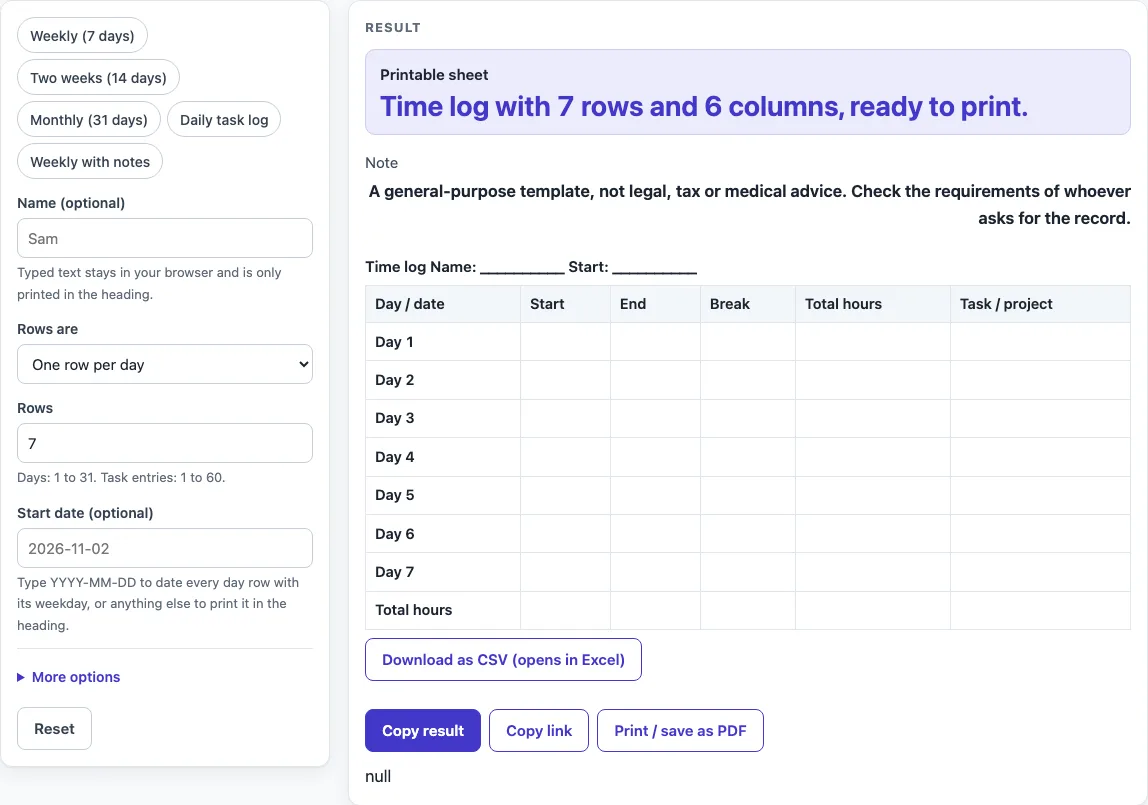
How to use the Time Log Template
- Pick a preset chip if one fits: “Weekly (7 days)”, “Two weeks (14 days)”, “Monthly (31 days)”, “Daily task log”, or “Weekly with notes”. Presets only set the controls, so you can change anything afterwards.
- Under “Rows are”, choose “One row per day” for dated rows, or “One row per task entry” for individual entries.
- Set “Rows” to the number you need. Per-day sheets take 1 to 31 rows, and task-entry sheets take 1 to 60.
- Type a name in “Name (optional)” if you want it in the heading.
- For per-day sheets, type a start date in “Start date (optional)” as YYYY-MM-DD, such as 2026-11-02, so each row gets a date and weekday.
- Open “More options” and turn on or off the “Break column”, “Task / project column”, “Notes column”, and “Total hours row” toggles.
- Watch for warnings. They appear if the sheet has more than 7 columns or if the start date is not in YYYY-MM-DD form.
- Print the “Printable sheet” from your browser’s print dialog, or select “Download as CSV (opens in Excel)” to save the table as a file.
- Write in your times and hours by hand on the printed sheet or in the file.
For a wide sheet, printing in landscape gives more room. The CSV file is made in your browser, and nothing is uploaded.
What goes on a time log template?
A time log template records the start time, end time, break, total hours, and task or project for each entry. These are the six default columns on a per-day sheet: Day / date, Start, End, Break, Total hours, and Task / project. You can add a Notes column, and you can remove Break or Task / project if you do not need them.
How are the rows set up on a time log?
The layout decides the rows. “One row per day” gives one row for each day, from 1 to 31 rows, with 7 by default. “One row per task entry” gives 1 to 60 rows with a blank Date column, so you write the date on each line. The default weekly sheet has 8 rows: seven day rows plus a Total hours row at the bottom, which you can switch off.
Why does the start date change the rows?
When you type the start date as YYYY-MM-DD in the per-day layout, every row gets a real calendar date and its weekday. For example, a week starting 2026-11-02 runs from 2026-11-02 (Monday) to 2026-11-08 (Sunday). Dates follow the real calendar, so month ends, year ends, and leap days are handled. Adding one day to 2028-02-28 gives 2028-02-29, a Tuesday. A monthly sheet starting 2026-12-01 ends on 2026-12-31 (Thursday).
If the start text is in any other form, the rows are numbered Day 1, Day 2, and so on. The text is printed only in the heading, and a warning says so. In the task-entry layout, a typed start date is also only printed in the heading, with a warning, because those rows are not dated.
How do the totals work on a time log template?
The sheet does not calculate anything. It does not work out hours from the start and end times, so you write each Total hours figure yourself. The Total hours row at the bottom is a row labelled “Total hours” with empty cells for your own sum. The heading reads “Time log Name: … Start: …”, and empty fields print as underscores, so you can see which parts still need filling in.
What limits apply to rows and columns?
Per-day sheets stop at 31 rows. A larger number is cut to 31, and a warning says so. Task-entry sheets allow up to 60 rows. A sheet with more than 7 columns triggers a warning, because wide sheets can be hard to read on a portrait page. You can switch a column off or print in landscape to fix this.
The sheet includes a Note row. It says the template is general-purpose and is not legal, tax, or medical advice. Check what the person asking for the record requires before you rely on it.
Worked examples
| Input | Result |
|---|---|
| 7 day rows | 8 rows, 6 columns |
| 7 day rows | 8 rows, 6 columns |
| 31 day rows | 32 rows, 6 columns |
| 12 task rows | 13 rows, 7 columns |
Calculated by the tool above; open it with the same values to see each step.
Frequently asked questions
Is the time log template free to use?
Yes. The tool is free, runs in your browser, and needs no sign-up.
Does the tool save my log?
No. Nothing is saved or uploaded, so keep a copy of your printed sheet or CSV file.
Will the sheet add up my hours?
No. Nothing is calculated, so you write the times and hours by hand.
What date format should I use for the start date?
Type it as YYYY-MM-DD, for example 2026-11-02. Any other text is printed only in the heading, the rows are numbered Day 1, Day 2, and so on, and a warning appears.
Can I add notes or remove columns?
Yes. Turn on the “Notes column” under “More options”. Switch off “Break column” or “Task / project column” if you do not need them.
Can I give this sheet to someone who asked for a record?
The template is general-purpose and does not give legal, tax, or medical advice. Check what the person or organisation asking for the record requires.
Can I print the log landscape?
Yes. Printing landscape gives more room for sheets with many columns, which is useful when the warning about more than 7 columns appears.
Can I print one sheet for each person?
Yes. Type the person’s name in the title, adjust the rows, and print one sheet for each person on your team.
Related tools
- Construction Daily Report Template: use it when you need a daily site report rather than a time record.
- Daily Log: use it for a simple running record of each day.
- Daily Report Template: use it for a daily summary sheet with room for written updates.
- Equipment Maintenance Log: use it to track service and checks on equipment.
- Expense Log: use it to record spending line by line.
- Fridge Temperature Log: use it for a simple record of fridge readings.
- Petty Cash Log: use it to track small cash payments.
- Restroom Cleaning Log: use it to record cleaning visits.