Sign In and Out Sheet
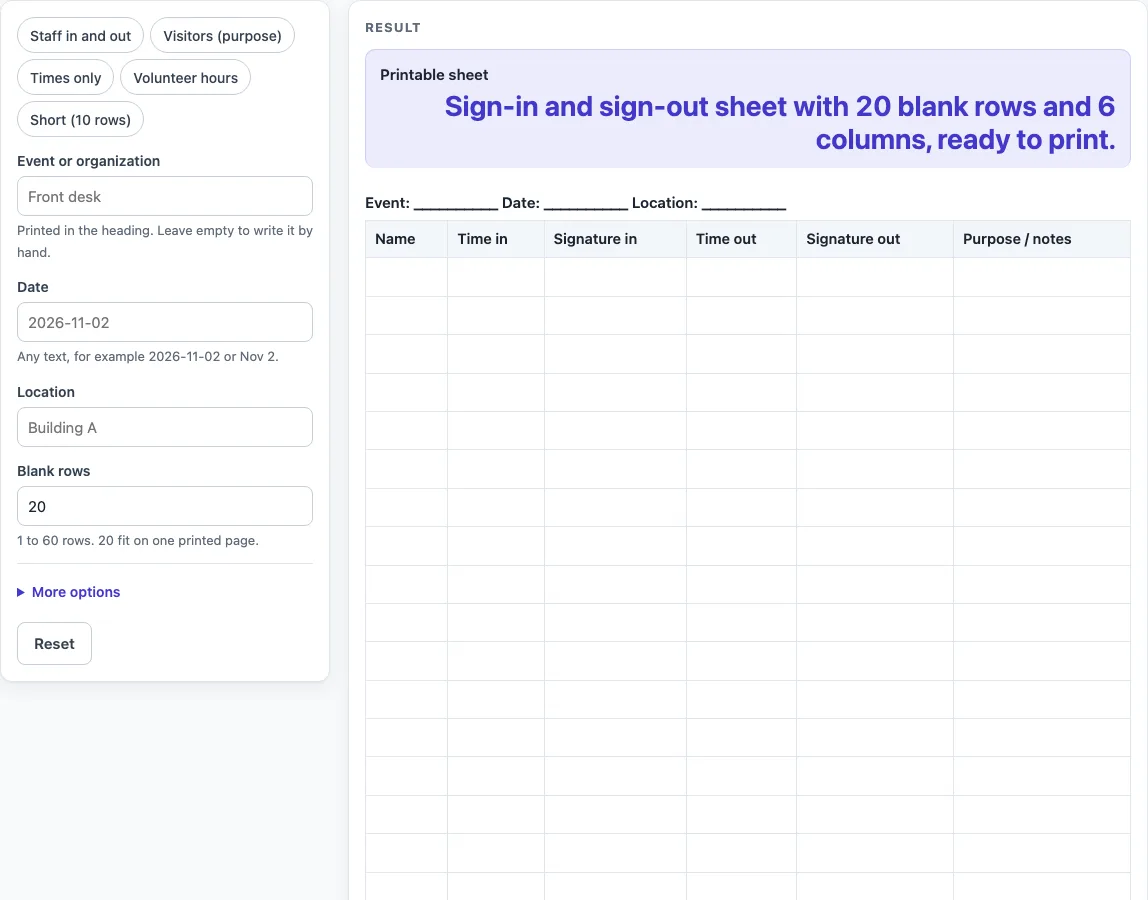
Pick the columns for time in, time out, signatures and purpose, set the number of rows, then print the blank sheet or download it as a CSV.
How to use the Sign In and Out Sheet
- Type the name of your event or organization in “Event or organization”. Leave it empty if you want a blank line to write on.
- Enter the day in “Date” and the place in “Location”. Any text works for the date. Any empty field prints as a line of underscores.
- Set “Blank rows” to a number from 1 to 60. The default is 20.
- Open “More options” to switch columns on or off with “Number the rows”, “Time in column”, “Signature in column”, “Time out column”, “Signature out column” and “Purpose / notes column”. The Name column is always on. Numbering is off by default, and turning it on gives 7 columns.
- If you want a ready-made column set, pick one of the presets: “Staff in and out”, “Visitors (purpose)”, “Times only”, “Volunteer hours” (25 rows), or “Short (10 rows)”. Some presets also fill in the heading text.
- Check the heading and the table.
- Print the sheet. The print view shows only the heading and the bordered table.
- To keep a digital copy, select “Download as CSV (opens in Excel)”. The file contains the heading line, the column names and the blank rows.
Rows above 60 are cut to 60 with a warning. A value of 0, a negative number or text gives an error, so enter a whole number from 1 to 60.
What does a sign in and out sheet record?
A sign in and out sheet records who came and went, and when. Each row is one person, and the cells are left empty so people can write in their own details by hand. The basic idea is simple: one row per person, with space to note the time they arrived and the time they left.
Because the sheet is a plain table, the record is only as complete as what people write on it. The tool prints the layout you choose, but it does not fill in any entries, check that a name is written correctly or confirm that a time is accurate. If someone forgets to sign out, the blank cell shows that, and you can follow up on it yourself.
How do the columns on a sign in and out sheet work?
Each column captures one piece of information. The Name column is always on, because every row needs to identify a person. The other columns are optional, so you can choose the ones that suit your event or group.
The “No.” column numbers the rows, which helps when you want to refer to a particular line. “Time in” and “Time out” give space for the arrival and departure times. “Signature in” and “Signature out” give space for a person to sign at each point. “Purpose / notes” leaves room for a short reason for the visit or any comment.
The default sheet uses six columns: Name, Time in, Signature in, Time out, Signature out and Purpose / notes, with 20 rows. Presets group the columns for common uses. For example, “Times only” keeps just the number, name and two time columns, and “Volunteer hours” gives 25 rows with a Purpose / notes column, so volunteers can record a note beside each entry.
The column layout and choices are the tool’s own design. They are general-purpose and are not based on any external standard or rule. The tool does not calculate hours from the times people write, so if you need totals, you will need to add them up separately.
What does the heading line show?
Above the table the sheet prints one heading line in the form “Event: … Date: … Location: …”. Whatever you typed appears after each label, and an empty field prints as a line of underscores so that it can be written in by hand. The print view shows only this heading and the bordered table, in black and white, on US Letter or A4 portrait.
Worked examples
| Input | Result |
|---|---|
| 20 rows | 20 rows, 6 columns |
| 20 rows | 20 rows, 6 columns |
| 25 rows | 25 rows, 5 columns |
| 60 rows | 60 rows, 7 columns |
Calculated by the tool above; open it with the same values to see each step.
Frequently asked questions
Do I need to create an account to make a sign in and out sheet?
No. The tool runs in your browser and does not require a sign-up. It is free to use.
Does the tool store the names or times people write?
No. Nothing is stored or uploaded. The sheet is a blank layout for people to fill in by hand, and it only holds what is written on the printed page.
How many rows can I add?
You can set “blank rows” from 1 to 60, and the default is 20. If you enter a number above 60, the tool cuts it to 60 and shows a warning. Entering 0, a negative number or text gives an error.
Can the sheet calculate the hours people worked?
No. The sheet only holds what people write on it. It does not add up hours or check times, so any totals need to be worked out separately.
Which preset should I choose for visitors?
Choose “Visitors (purpose)” if you want a Name, Time in, Time out and Purpose / notes layout. Choose “Staff in and out” if you also want the number column and signature columns.
Can I save a copy of the sheet to edit later?
Yes. Select “Download as CSV (opens in Excel)” to save a .csv file with the heading line, the column names and the blank rows. The file opens in a spreadsheet.
Related tools
- Daycare Sign In Sheet: Use this when you need a sign-in layout for children arriving and leaving a daycare setting.
- Open House Sign In Sheet: Use this when you want a simple list of guests who attend an open house or similar event.
- Sign In Sheet: Use this when you need a basic sign-in list without the in-and-out time columns.
- Visitor Log: Use this when you want a running record of visitors and their times.