Reimbursement Form
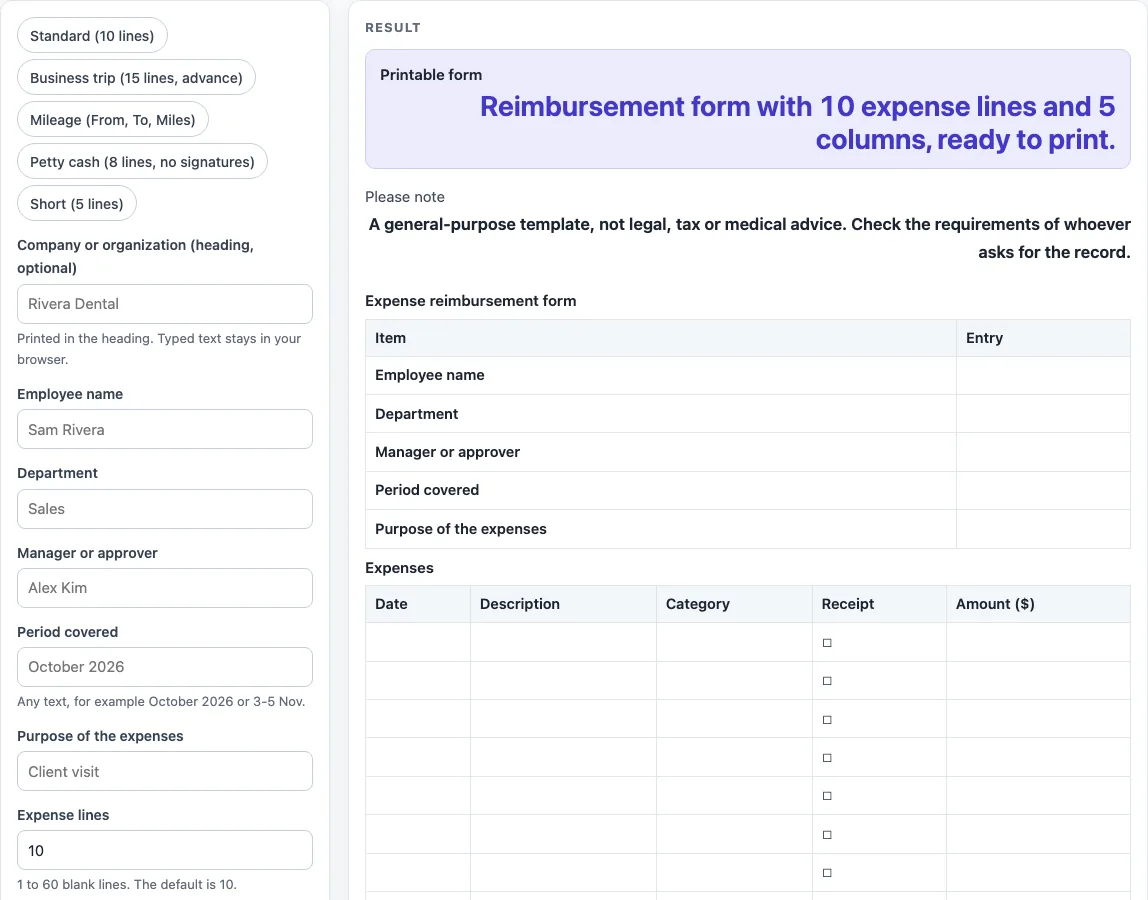
Type your details, choose the expense lines and columns, then print the reimbursement form or download it as a CSV file to fill in on a computer.
Reimbursement Form is a free tool that builds a printable expense reimbursement request from the details you type. It runs in your browser, needs no sign-up, and produces a sheet with your details, an expense table, totals and an approval block that you can print or save as a CSV file.
The sheet is a generic layout for general use. It is not an official or company-specific form, so check the requirements of the person or team who will receive it. The tool does not add up your expenses or set any rates or limits. You enter the totals yourself, and the sheet is ready to print once you have filled in the fields.
How to use the Reimbursement Form
- Type your company or organization name in “Company or organization (heading, optional)”. The first heading then reads “Expense reimbursement form -
”. Leave it empty if you do not need a name. - Fill in “Employee name”, “Department”, “Manager or approver”, “Period covered” and “Purpose of the expenses”. Each detail is cut to 80 characters. An empty field prints as a blank line to write on.
- Set “Expense lines” to the number of rows you need, from 1 to 60. The default is 10.
- Open “More options” to change the “Currency symbol” (up to 4 characters), or to switch columns on or off: “Category column”, “From column (mileage)”, “To column (mileage)”, “Miles column” and “Receipt box column”. You can also turn on the “Advance received line” and the “Approval and signature block”.
- Check the sheet. Click the Print button to print it, or the “Download as CSV (opens in Excel)” button to save the tables as a .csv file.
You can also start from a preset button, such as “Standard (10 lines)”, “Business trip (15 lines, advance)”, “Mileage (From, To, Miles)”, “Petty cash (8 lines, no signatures)” or “Short (5 lines)”. Each preset sets the lines, columns and sections for you, and you can change them afterwards.
Settings and typed text can appear in the page link, which is the address after ?s=. Remove any private details before you share the link.
What should an expense reimbursement form include?
A reimbursement form should say who is claiming the money, what the money was spent on, and how much each item cost. It should also show the total and leave space for the approval. The sheet follows this order: a details block, the Expenses table, the Totals block and the Approval block.
The details block tells the approver whose claim it is, which department it belongs to, who must approve it, and which period it covers. The Expenses table lists each item with a date, a description and an amount. The approver checks each line against the period and purpose you gave, so clear descriptions help.
The Totals block has two lines to fill in. “Total expenses” is the sum of the expense amounts. “Amount to be reimbursed” is the total minus any advance you already received. With the “Advance received line” on, the sheet adds a line for “Less: advance received” between the two. The rule is:
Amount to be reimbursed = Total expenses − advance received
Do I need to attach receipts?
A receipt is proof that you paid an amount, so many organizations ask for one for each expense. The sheet can show this with a Receipt column. Each line in that column has an empty box, which you can tick or write in to show that a receipt is attached.
The tool does not check whether you have a receipt, and it does not decide whether receipts are required. Whether you must attach them, and how to send them, depends on the rules of the person or team who will approve the claim. Ask them before you submit, and keep a copy of your receipts in case they are needed later.
Worked examples
| Input | Result |
|---|---|
| 10 expense lines | 4 sections, 5 expense columns |
| 15 expense lines | 4 sections, 5 expense columns |
| 12 expense lines | 4 sections, 6 expense columns |
| 5 expense lines | 3 sections, 3 expense columns |
Calculated by the tool above; open it with the same values to see each step.
Frequently asked questions
Can I add a mileage reimbursement section?
Yes. Turn on the “From column (mileage)”, “To column (mileage)” and “Miles column” under More options, or choose the “Mileage (From, To, Miles)” preset. The tool does not work out the amount for miles, so you need to enter the amount for each line yourself.
Is this an official company form?
No. It is a generic template made for this site, not an official or company-specific form. The result shows a note that it is not legal, tax or medical advice. Check the requirements of whoever asks for the record before you use it.
Does the tool add up my totals?
No. The “Total expenses” and “Amount to be reimbursed” lines are empty, so you write in the figures. The tool does not state any rates or limits.
Why does the tool show an error or a warning?
Expense lines must be a whole number from 1 to 60. A value of 0, a negative number, text or an empty field gives an error. Values above 60 are cut to 60 with a warning. If the expense table has more than 7 columns, you get a warning that the sheet may be hard to read on a portrait page.
Is my information saved or uploaded?
No. The page runs in your browser, and nothing you type is stored or uploaded. It is free, and you do not need to sign up.
How do I share my form safely?
Typed text and settings can appear in the page link, so remove private details such as names or amounts from the form before you copy the link. You can also send the printed sheet or the CSV file instead.
Related tools
- Expense Log: Printable expense log with vendor, amount and receipt columns.
- Petty Cash Log: Printable petty cash log with vouchers, balance and cash count.
- Mileage Log: Printable mileage log with odometer, miles, route and purpose columns.
- IRS Mileage Log Template: Mileage log with the columns of the Publication 463 example log.