
Project Tracker
Name the project, choose the task rows and columns, then print the project tracker or download it as a CSV file to keep it up to date in a spreadsheet.
How to use the Project Tracker
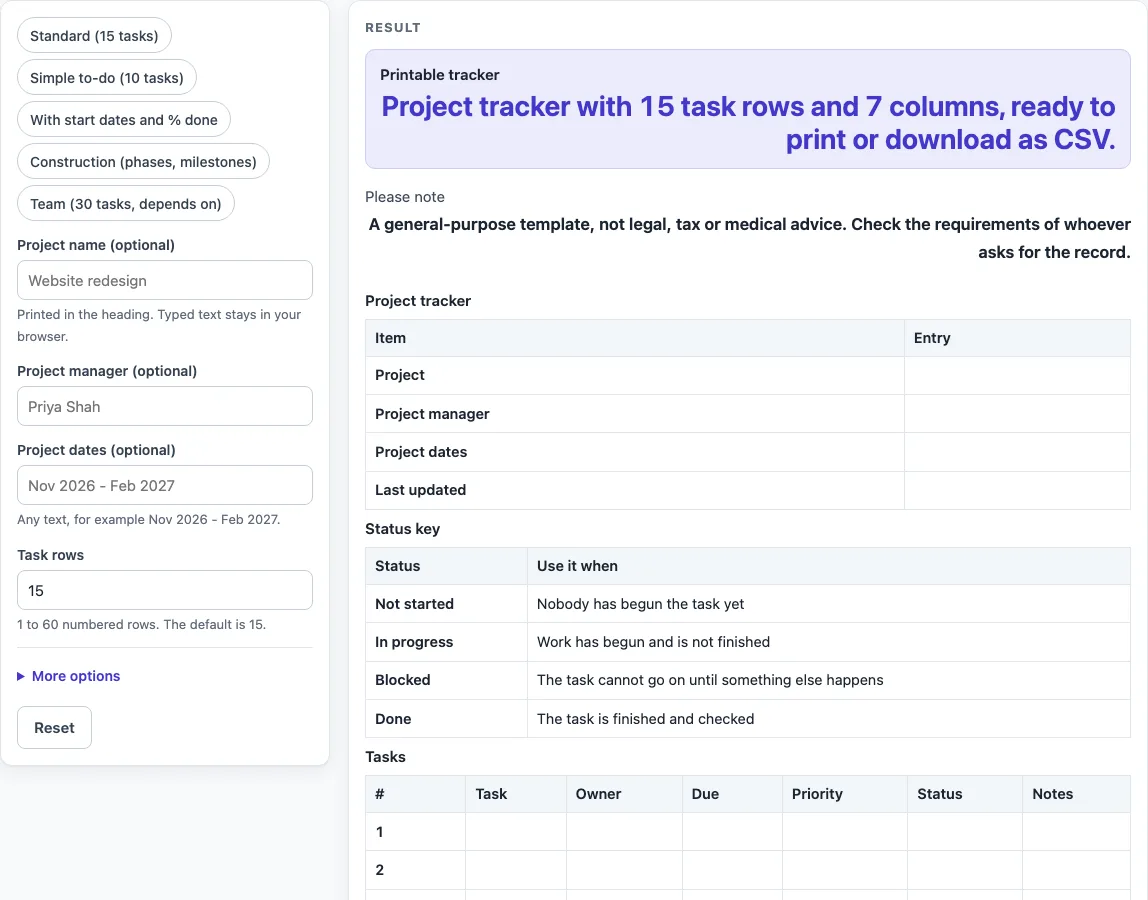
- Type a project name, project manager and project dates in the first three fields. These are optional, and the dates can be any text, such as Nov 2026 - Feb 2027.
- Set Task rows to the number of tasks you expect. You can enter 1 to 60, and the default is 15.
- To change the layout, open More options. Switch on or off the Phase, Start date, Priority, % done, Depends on and Notes columns, the Status key, and the Milestones table.
- Or click a preset button above the form, such as “Standard (15 tasks)” or “Team (30 tasks, depends on)”. Each preset sets values that you can change afterwards.
- Read the result line, which shows the number of task rows and columns. A warning appears if you have more than 7 task columns, because the sheet may print small. Switch off a column or print in landscape to fix this.
- Click Print to print the sheet or save it as a PDF from the print dialog. Click “Download as CSV (opens in Excel)” to save the same tables as a .csv file.
The CSV file opens in Excel, Google Sheets or Numbers, so you can update the tracker after printing. There is no Word (.docx) download. Typed text and settings can appear in the page link after ?s=, so remove any private details before you share that link.
What should a project tracker include?
A project tracker should include the project details, a list of tasks and the status of each task. The details block shows the project name, the person in charge and the dates, so anyone who picks up the sheet knows what it covers. The task table is the core part. Each row is one piece of work, numbered so you can refer to it.
Most trackers also give each task an owner and a due date. The owner is the person who does the work, and the due date shows when it should be finished. A priority column helps you see which tasks matter most when time is short. A notes column records anything that does not fit elsewhere, such as a supplier delay.
Add a milestones table when the project has key points that must be reached, such as a finished foundation or a signed-off inspection. Milestones are fixed events with a target date, so they are easier to check than a long task list. The “Reached” box shows whether each one has happened.
What status categories should a project tracker use?
A project tracker should use a small set of status words that everyone understands in the same way. The Project Tracker status key uses four: Not started, In progress, Blocked and Done. Not started means nobody has begun the task yet. In progress means work has begun and is not finished. Blocked means the task cannot go on until something else happens, such as a delivery or an approval. Done means the task is finished and checked.
Marking a task as blocked and writing the reason in the notes column tells the team what must happen before work can continue. The four words are a suggestion, so you can use other words if your team already has its own. Keep the list short, because too many categories make the sheet harder to read at a glance.
The tracker records status by hand. It does not change a status when a date passes, so update the sheet as work moves on.
Worked examples
| Input | Result |
|---|---|
| 15 task rows | 7 task columns, 3 sections |
| 20 task rows | 7 task columns, 4 sections |
| 10 task rows | 5 task columns, 2 sections |
| 15 task rows | 7 task columns, 3 sections |
Calculated by the tool above; open it with the same values to see each step.
Frequently asked questions
How do I make a project tracker in Excel?
Open a new Excel sheet and create one row of column headers, such as #, Task, Owner, Due, Priority and Status. Then type one task per row and use a drop-down list in the Status column to limit entries to the status words you choose. To skip the typing, click “Download as CSV (opens in Excel)”: the file already has the column headings and numbered rows, and you can add the drop-down list in Excel afterwards.
How is a project tracker different from a Gantt chart?
A project tracker lists tasks, owners and statuses, and it is a record of what has happened. A Gantt chart shows tasks as bars on a timeline, so you can see when work overlaps and what depends on what. Project Tracker does not draw a Gantt chart, schedule tasks or calculate dates. Its “Depends on #” column is a blank cell where you write the number of the task that must come first, so you still need a separate tool for timing.
Can I use it to track a construction project?
Yes. Use the “Construction (phases, milestones)” preset, which sets 20 task rows, turns on the Phase column so you can group work by stage, and adds a Milestones table. Write the phase in each row, and use the milestones table for key inspections or completion points. The sheet is a general template, so check what the person or body asking for the record needs.
Is the Project Tracker free, and do I need to sign up?
Yes. The tool is free and needs no sign-up. It runs in the browser, and nothing you type is stored or uploaded.
Can I download the tracker as a Word document?
No. There is no Word (.docx) download. You can print the sheet, save it as a PDF from the print dialog, or download a CSV file that opens in Excel, Google Sheets or Numbers.
Related tools
- Construction Daily Report Template: use it to record each day’s work, weather and crew on a building site.
- Daily Log: use it to keep a simple running record of what happened each day.
- Daily Report Template: use it to summarize the day’s work and problems for a manager.
- Equipment Maintenance Log: use it to record service and repair dates for tools and machines.
- Expense Log: use it to list project costs and receipts in one place.