Petty Cash Log
Choose the columns and number of rows, add the opening balance row and reconciliation block if you want them, then print the sheet or download a CSV.
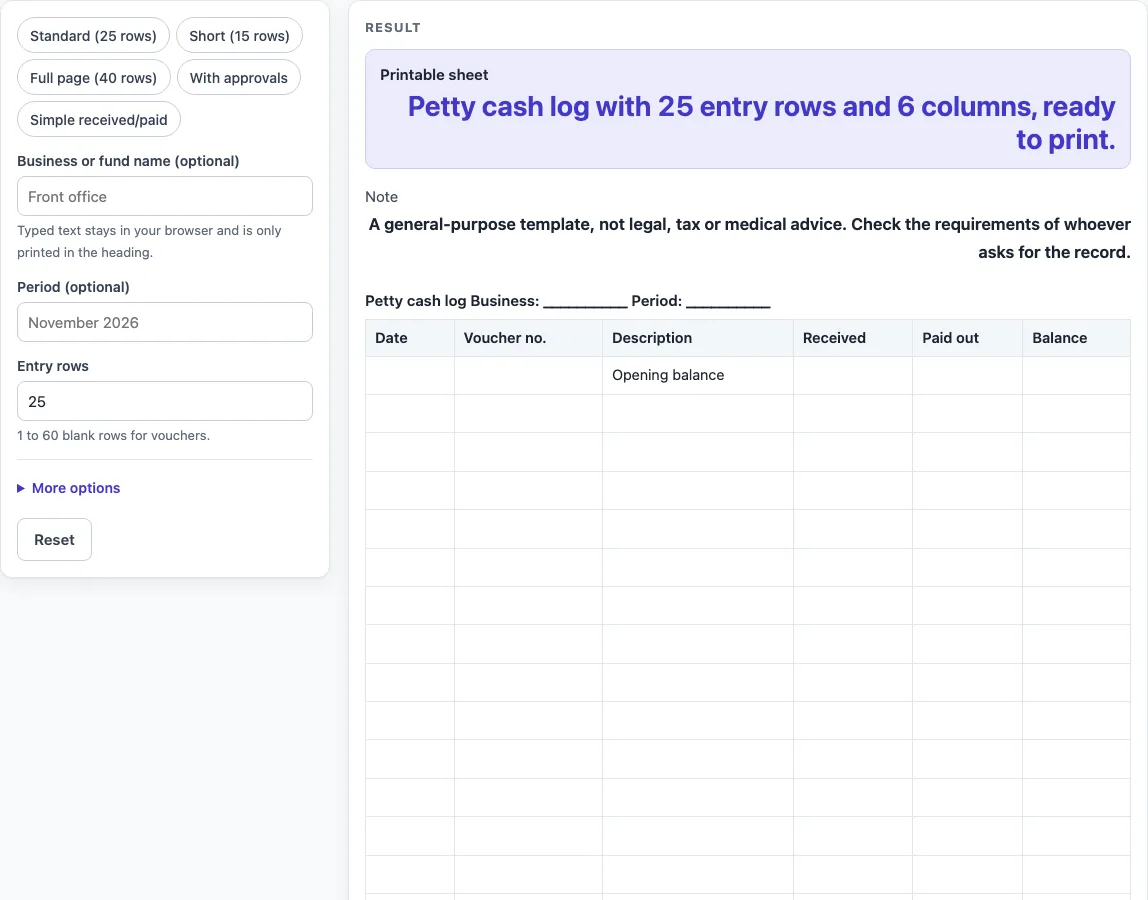
How to use the Petty Cash Log
- Type your business or fund name in “Business or fund name (optional)” and the dates in “Period (optional)”. They appear in the heading. Empty fields print as underscores, so you can leave them blank and write by hand.
- Pick a preset: “Standard (25 rows)”, “Short (15 rows)”, “Full page (40 rows)”, “With approvals” or “Simple received/paid”. You can change any setting afterwards.
- Set “Entry rows” from 1 to 60. A number above 60 is cut to 60 with a warning, and 0 or text gives an error.
- Under “More options”, switch “Voucher number column”, “Category column”, “Balance column” and “Approved by column” on or off.
- “Opening balance row” and “Totals row” are on by default. They add a row with “Opening balance” in the Description column and a row with “Totals” in the Date column.
- “Printed note on how to fill the balance” is on by default and prints the balance rule under the table, but only while the Balance column is on.
- “Cash reconciliation block” is also on by default. It adds an Item and Amount table with six labelled blank lines.
- If the sheet has more than 7 columns, a width warning appears. Switch off a column or print in landscape.
- Print the sheet from your browser, or select “Download as CSV (opens in Excel)” to save the tables as a CSV file made in your browser.
What does a petty cash log record?
A petty cash log records each small cash payment and each amount of cash received, one row per entry. It gives a written trail of where small sums of cash went. This tool builds the blank table, and you write every date, description and amount yourself.
Each entry row has a Date, a Description, Received and Paid out. The Voucher no., Category, Balance and Approved by columns are optional; the Category column gives you a space to group payments using words you choose.
How does the balance formula work?
The printed rule reads: Balance = previous balance + received − paid out. It is a plain-language note written for this template, not a calculation the tool performs, and it shows only while the Balance column is on.
To use it, take the balance from the row above, add any cash received on the current row, subtract any cash paid out, and write the result in the Balance column. If you start a new page, carry the last balance forward. Because nothing is calculated for you, check each balance against the row above it.
Why start with an opening balance and end with totals?
The opening-balance row gives the first entry a starting figure for the Balance column; you write the starting amount there. The totals row gives you a place to write the sums at the end of the page. Both rows are on by default, and the tool does not add up the amounts in either, so you write the figures yourself. Switch them off if your sheet should contain only entry rows.
What is the cash reconciliation block for?
The cash reconciliation block is a two-column table with Item and Amount headings and six labelled blank lines: cash counted in the box, vouchers total (paid out), balance per this log, the difference, counted by / date, and checked by / date. The difference line reads “Difference (cash counted − balance per this log)”.
To use it, count the cash, write the total on the first line, write the balance from the log on the third, and write the difference between the two. The block only records your working; it does not explain any gap.
Why record a voucher number and an approver?
A voucher number column lets you give each payment its own number, so a row can be matched with a slip or receipt you keep with the cash. The Approved by column leaves a space for the name of the person who signed off on a payment. The tool does not check any entry or confirm an approval; the sheet records whatever you write there.
Worked examples
| Input | Result |
|---|---|
| 25 entry rows | 27 rows in the log table, 6 columns |
| 15 entry rows | 17 rows in the log table, 6 columns |
| 40 entry rows | 42 rows in the log table, 8 columns |
| 20 entry rows | 21 rows in the log table, 4 columns |
Calculated by the tool above; open it with the same values to see each step.
Frequently asked questions
Is this petty cash log free to use?
Yes. It is free, runs in your browser, and needs no sign-up. Nothing is saved or uploaded. Typed text stays in your browser, but it can end up in the page link if you share it, so keep names out of a shared link.
Does the tool calculate the balance for me?
No. You write every amount by hand, including each balance. The printed note shows the balance rule so you can follow it as you fill in the sheet.
How many entry rows can I have?
The “Entry rows” control defaults to 25 and accepts values from 1 to 60. A number above 60 is cut to 60 with a warning. Zero or text gives an error.
How do I print the petty cash log?
Select “Printable sheet” and print from your browser. If the sheet has more than 7 columns, the tool warns that it may be hard to read on a portrait page. Switch off a column or print in landscape.
Can I save the log as a spreadsheet file?
Yes. Select “Download as CSV (opens in Excel)” to get the tables as a CSV file. The file is made in your browser, and nothing is uploaded.
Does this tool give legal or tax advice?
No. It is a general-purpose template and not legal, tax or medical advice. It does not suggest limit amounts or policies. Check the requirements of whoever asks for the record.
Related tools
- Expense Log: Use it when you want to record business spending in a log format.
- Daily Log: Use it when you need a simple day-by-day record of activity.
- Daily Report Template: Use it when you want a printable daily report with blank fields to fill in.
- Equipment Maintenance Log: Use it when you need to record the upkeep of equipment over time.
- Temperature Log: Use it when you need a blank sheet to record temperature readings by hand.