One-on-One Meeting Agenda Template
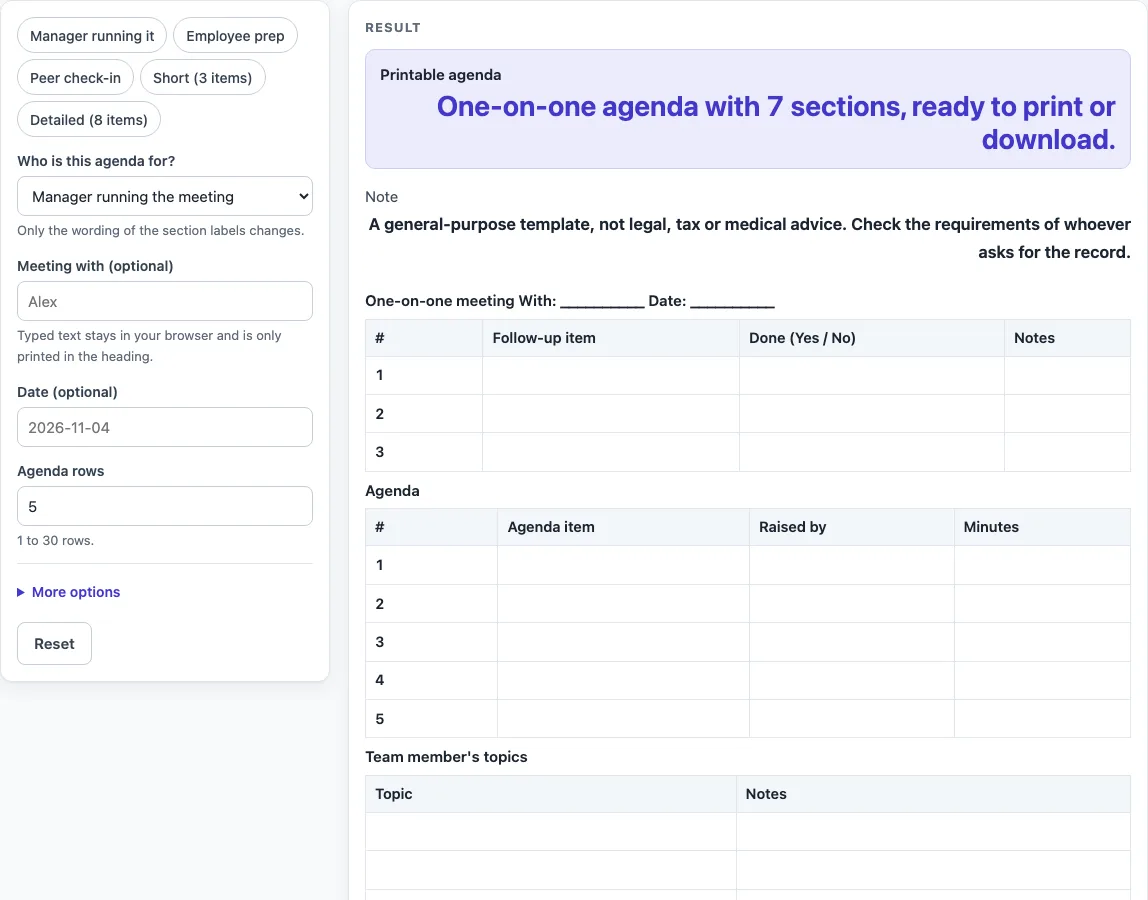
Choose whether you are the manager, the team member or a peer, set the number of rows, then print the agenda or download it as CSV. Nothing is saved or uploaded.
A one on one meeting agenda template is a blank sheet you fill in before a meeting between two people, such as a manager and a team member. This tool builds a blank, printable one-on-one meeting agenda made of several tables, ready to print or download as a spreadsheet file. Nothing is calculated, so you supply the topics, names and dates.
You choose who the agenda is for, add an optional heading, a meeting partner and a date, and set how many rows each table needs. The sheet can also include a follow-up table from last time, a section for the chosen style and a notes box.
The tool runs in your browser, so nothing you type is stored or uploaded. It is free, and there is no sign-up.
How to use the one on one meeting agenda template
- Open “Who is this agenda for?” and select Manager running the meeting, Team member preparing or Peer check-in. The default is manager. The choice changes only the wording of the topic and extra section headings.
- Optionally type a name in “Meeting with (optional)” and a date in “Date (optional)”. Use YYYY-MM-DD. Any other text still prints, but you will see a warning.
- Set “Agenda rows”. The default is 5.
- Open More options and type a “Heading (optional)” if you want a title other than the default.
- Set “Rows per topic list” (default 3) and “Action item rows” (default 4).
- Use the toggles “Follow-up from last meeting”, “Extra section for this style” and “Notes box” to switch each part on or off. If you switch off the follow-up table, the heading line moves onto the Agenda table.
- Check the sheet, then click Print, or use Download as CSV (opens in Excel) to save the same tables as a spreadsheet file.
Presets save time. “Manager running it”, “Employee prep” and “Peer check-in” set the style. “Short (3 items)” gives 3 agenda rows, 2 topic rows and 3 action rows, with no extra section and no notes box. “Detailed (8 items)” gives 8 agenda rows, 5 topic rows and 6 action rows.
Print uses the Print button and fits US Letter and A4 portrait in black and white.
What goes on a one on one meeting agenda?
A one on one agenda lists the topics both people want to cover, a check on what was agreed last time, and a place to record actions. The default sheet has seven tables: Follow-up from last meeting, Agenda, two topic lists, an extra section for the chosen style, Action items, and a Notes box.
The Follow-up table has the columns #, Follow-up item, Done (Yes / No) and Notes. The Agenda table has #, Agenda item, Raised by and Minutes, so you can see who brought each point and how long you expect it to take. The Action items table has #, Action, Owner and Due, which keeps each task tied to one named person and a date.
How do the three styles differ?
The three styles change only the wording of the headings, and the layout stays the same. Each style has two topic lists and one extra section.
The manager style uses “Team member’s topics”, “Manager’s topics” and “Feedback and development”. That last section includes Recognition, Feedback to share and Goals and development.
The employee style uses “My topics”, “My manager’s topics” and “Questions and support”. That section includes Questions to ask, Support I need and Progress on my goals.
The peer style uses “My topics”, “Their topics” and “Shared work”. That section includes What I can help with, What I need from you and Next check-in.
How does the heading line work?
The heading prints in one line in this format: ‘{title} With: {person} Date: {date}’. Empty fields print as underscores, so you can write in them by hand.
For example, style employee with the person Alex and the date 2026-11-04 gives the heading “One-on-one meeting With: Alex Date: 2026-11-04”. The date is printed exactly as you type it. Text that is not YYYY-MM-DD only adds a warning. It does not change the output.
Why switch off optional sections?
Follow-up, the extra section and the notes box can each be switched off, so the sheet holds only what you use. The Short preset removes the extra section and the notes box, which leaves a shorter page for a quick meeting.
Is this an official record?
This is a general-purpose template, not legal, tax or medical advice. The layout is our own design, and it does not follow any external standard. Check the requirements of whoever asks for the record. Nothing is saved on the site, so keep a printed copy or a CSV file of your sheet.
Worked examples
| Input | Result |
|---|---|
| Manager running the meeting, 5 agenda rows | 7 sections |
| Team member preparing, 5 agenda rows | 7 sections |
| Peer check-in, 3 agenda rows | 4 sections |
| Manager running the meeting, 8 agenda rows | 7 sections |
Calculated by the tool above; open it with the same values to see each step.
Frequently asked questions
Is this one on one meeting agenda template free?
Yes. It is free, runs in your browser and needs no sign-up.
Does the tool save what I type?
No. Nothing typed is stored or uploaded. It stays in your browser, so print the sheet or use Download as CSV (opens in Excel) before you close the page.
Can I print the agenda?
Yes. Use the Print button. The sheet fits US Letter and A4 portrait and prints in black and white.
Can I get the agenda as a spreadsheet file?
Yes. Download as CSV (opens in Excel) saves the same tables as a spreadsheet file.
What happens if I enter too many rows?
Row counts above 30 are cut to 30, and you will see a warning. Zero, negative or text values give an error.
Can I leave out the follow-up table?
Yes. Switch off “Follow-up from last meeting” under More options. The heading line then moves onto the Agenda table. “Extra section for this style” and “Notes box” can be switched off in the same way.
Does the style change the layout?
No. “Who is this agenda for?” changes only the wording of the two topic lists and the extra section. The tables and columns stay the same.
Does this give HR or legal advice?
No. It is a general-purpose template, not legal, tax or medical advice. Check the requirements of whoever asks for the record.
Related tools
- Board Meeting Agenda Template: Use it when you are planning a board meeting rather than a meeting between two people.
- Call Log Template: Use it to record calls on a blank sheet that you customise.
- Incident Report Template: Use it to write up an incident on a blank form.
- Meeting Agenda Template for Excel: Use it if you want a spreadsheet-based agenda for a group meeting.
- Meeting Minutes Template: Use it to record what was discussed and decided after a meeting.
- Nonprofit Board Meeting Agenda Template: Use it to plan a meeting of a nonprofit board.
- Nonprofit Board Meeting Minutes Template: Use it to record decisions from a nonprofit board meeting.
- Weekly Status Report Template: Use it to summarise progress on a blank sheet each week.