Mileage Log
Pick the columns and the number of rows you need, then print the mileage log or download it as CSV. Business, medical, rental and mileage-book layouts are one click away.
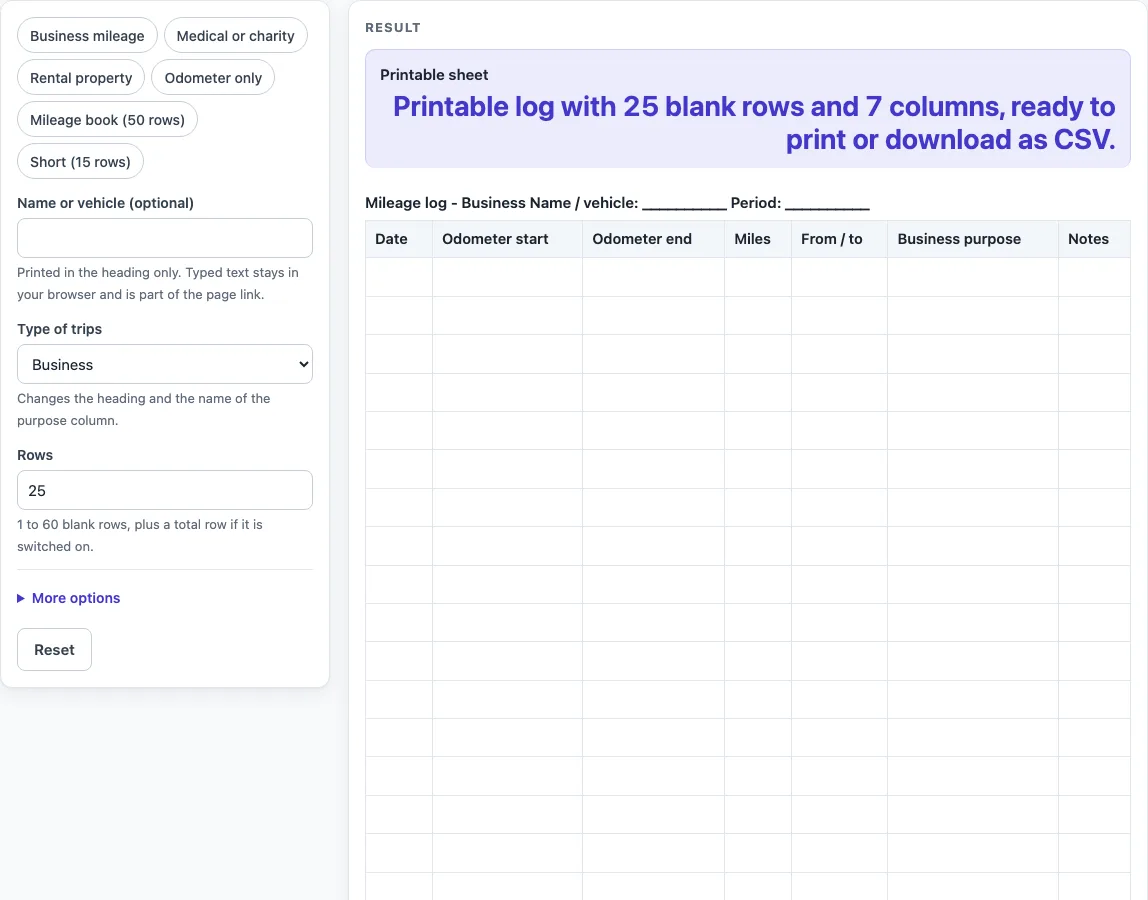
How to use the Mileage Log
- Type a name or vehicle into “Name or vehicle (optional)”. It prints in the heading only.
- Choose an option from “Type of trips”: Business, Medical, Charity, Rental property, or Personal. This changes the heading and the name of the purpose column.
- Enter a “Period (optional)”, such as a month or a year.
- Set “Rows” to a number from 1 to 60. A number above 60 is cut to 60 with a warning. Zero, text or an empty box shows an error.
- Open More options to switch columns on or off. Every column except Date can be switched off. You can also turn off “Total row at the bottom”.
- Or click a preset chip: “Business mileage”, “Medical or charity”, “Rental property”, “Odometer only”, “Mileage book (50 rows)”, or “Short (15 rows)”. A preset fills the controls for you, and you can still change them afterwards.
- Check the “Printable sheet” result. It reads, for example, “Printable log with 25 blank rows and 7 columns, ready to print or download as CSV.”
- Click “Download as CSV (opens in Excel)” to save the same table, with the heading as the first line. Or use the print view to print the sheet in black and white on US Letter or A4 portrait.
The sheet is blank, so type in each reading yourself. The Total row is also empty, so add up the miles and enter the total yourself.
What should each row of a mileage log record?
Each row should hold one trip. A useful row records the date, the odometer reading when the trip started and ended, the miles driven, and where and why you travelled.
The odometer is the counter in your car that shows the total distance driven. To find the miles for one trip, subtract the start reading from the end reading. For example, a start of 42,310 and an end of 42,352 gives 42 miles. The Mileage Log does not do this subtraction for you, so check each Miles entry by hand.
The “From / to” column records where the trip began and ended. The purpose column records why you made the trip. Writing both down at the time of each trip makes the log easier to trust later, because you are not relying on memory. If you only need distances, the “Odometer only” preset removes “From / to” and the purpose column, leaving Date, Odometer start, Odometer end, Miles, and Notes.
How does the Type of trips choice change the log?
The “Type of trips” choice changes two things: the heading and the name of the purpose column. The column can be named “Business purpose”, “Medical reason”, “Charity or organization”, “Property / reason”, or “Reason for trip”, depending on the option you pick. The column names are a design choice for the sheet. They do not set any rule for what a trip must be recorded as.
The Mileage book preset gives 50 blank rows plus the Total row, which makes 51 table rows, with 7 columns. Rows can be set anywhere from 1 to 60, so you can match the sheet to how many trips you expect to record.
The “Medical or charity” preset uses Medical trips, drops the odometer columns and sets 20 rows, so it keeps Date, Miles, From / to, Medical reason and Notes. The “Rental property” preset uses Rental property trips and 20 rows. These presets are only starting layouts of our own design, and you can change every control afterwards.
Whether a particular log meets the rules for a tax return or an employer’s policy is a question for a tax adviser or your employer. This tool does not check that, and it does not give legal or tax advice.
Worked examples
| Input | Result |
|---|---|
| 25 rows, Business trips | 7 columns |
| 50 rows, Business trips | 7 columns |
| 20 rows, Medical trips | 5 columns |
| 20 rows, Rental property trips | 6 columns |
| 15 rows, Business trips | 5 columns |
Calculated by the tool above; open it with the same values to see each step.
Frequently asked questions
Is this mileage log free to use?
Yes. It runs in your browser, it is free, and there is no sign-up. Nothing is saved or uploaded.
Does the mileage log calculate my miles or deductions?
No. Nothing is calculated, and the page does not state any mileage rate, deduction or tax rule. You type in the odometer readings and miles yourself.
Can I get a mileage log template with 50 rows?
Yes. Click “Mileage book (50 rows)” to fill the controls for a sheet with 50 blank rows. The Total row is added below them.
How do I remove columns I do not need?
Open More options and switch off the columns you do not want. Every column except Date can be switched off. You can also turn off the Total row.
Can I keep my typed name on the page?
The typed name stays in your browser and can become part of the page link. Nothing is saved or uploaded. To keep a copy of the sheet, download it as CSV or print it.
What happens if I enter more than 60 rows?
The sheet uses 60 rows and shows a warning: “Rows is limited to 60, so the sheet uses 60.”
Can I use the sheet for more than one vehicle?
Yes. Print one sheet for each vehicle, and type the vehicle name or plate in the title so the sheets stay apart.
Related tools
- Car Maintenance Log: use it to record services and repairs for the same vehicle.
- Driver’s Daily Log: use it to record a driver’s day, including hours and trips.
- Fuel Log: use it to record fill-ups and fuel use over time.
- IRS Mileage Log Template: use it if you are searching for a mileage log template with IRS in the name.
- Trip Log: use it to record journeys in more detail than a mileage sheet needs.