Meeting Minutes Template
Pick how many attendance, agenda and action item rows you need, or start from a general, board, project, committee or short preset. Print the blank form or download it as CSV.
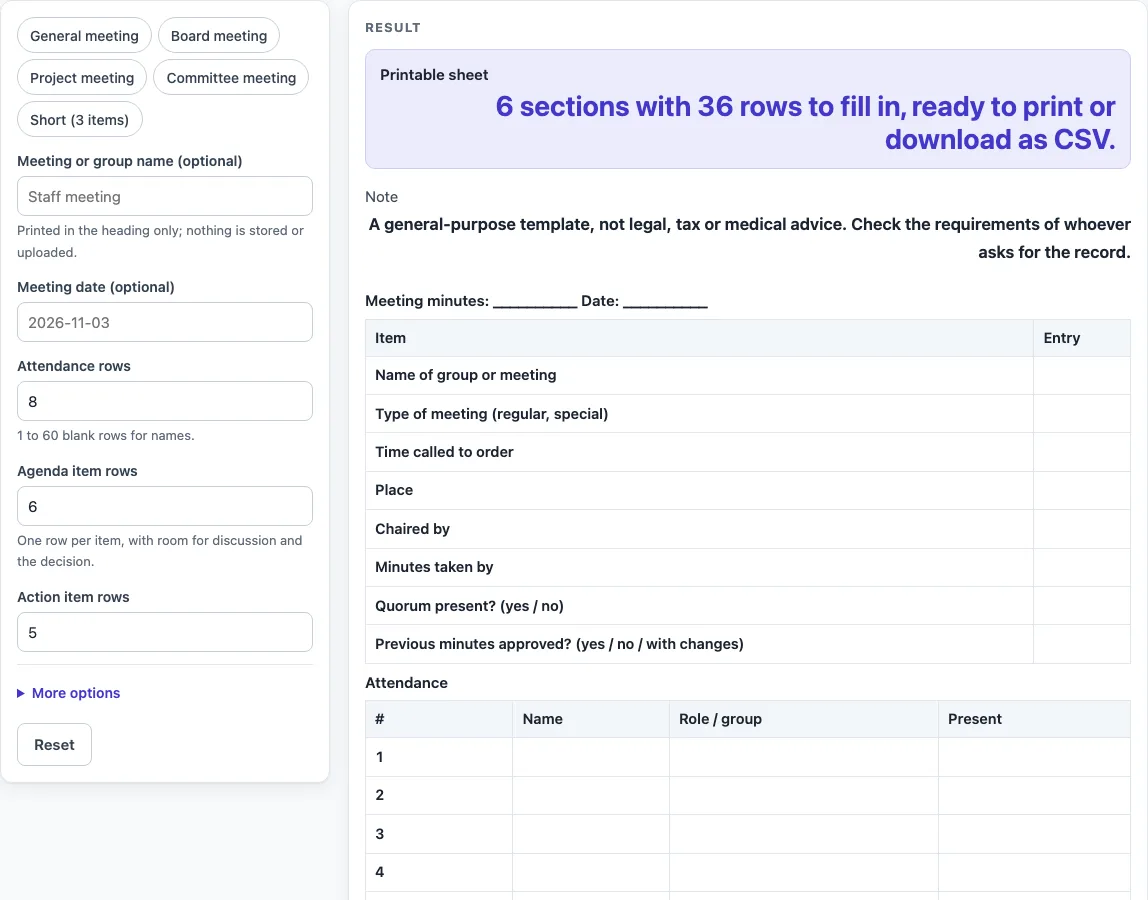
How to use the Meeting minutes template
- Type a name into “Meeting or group name (optional)” and a date into “Meeting date (optional)”. Leave them empty for a blank sheet.
- Set “Attendance rows” to the number of people you expect to list. The default is 8.
- Set “Agenda item rows” to the number of agenda items. The default is 6.
- Set “Action item rows” to the number of follow-up tasks you expect. The default is 5.
- Open “More options” to switch sections on or off. “List of absent members”, “Action items table”, “Next meeting lines” and “Submitted-by and approved lines” are on by default. “Motions and votes table” is off by default, so turn it on if you need to record motions.
- Optionally pick a preset: “General meeting”, “Board meeting”, “Project meeting”, “Committee meeting” or “Short (3 items)”. Presets set row counts and options, which you can still change.
- Check the “Printable sheet” output. The line under it gives the totals, for example “6 sections with 36 rows to fill in, ready to print or download as CSV.”
- Click Print to print the sheet in black and white on US Letter or A4.
- Or click “Download as CSV (opens in Excel)” to save every section as one CSV file, with each section’s title, columns and blank rows.
Row-count fields take 1 to 60. A larger number is cut to 60 with a warning; below 1 or text gives an error.
What goes into meeting minutes?
Meeting minutes are a written record of a meeting. The template covers who attended, who was absent, what was on the agenda, what was decided and what happens next. You enter the record yourself.
The attendance, details, agenda-item, motions and closing sections follow the items that the City of Madison City Attorney page lists for minutes. That page does not say these items are required by any law for your group, so treat them as a checklist rather than a rule.
Which sections does the template include by default?
By default the sheet has six sections: Meeting minutes, Attendance, Absent, Agenda items, Action items and Closing. Meeting minutes and Closing use two columns, Item and Entry, and hold form lines such as “Quorum present?” with yes or no answers and “Previous minutes approved?” with yes, no or with changes.
Attendance has #, Name, Role / group and Present. Agenda items has #, Agenda item, Discussion (summary) and Decision / outcome.
Why does the template include an Action items table?
An action item is a task that comes out of the meeting, and minutes are where you record who is responsible for it and when it is due. The Action items table uses the columns #, Action, Owner, Due date and Status.
The Action items table, the absent list, the next meeting lines and the Approved on line are our own layout. They are not items taken from the Madison page.
What do the Moved by and Seconded by columns do?
The motions table has both Moved by and Seconded by because the Madison page lists who made and who seconded each motion. You can leave the column empty if your group does not need it.
The motions table is off by default. Turn on “Motions and votes table” under “More options” when you need it.
How do row counts change the sheet?
Each row-count field accepts a whole number from 1 to 60. The default sheet has 36 rows: 8 in Meeting minutes, 8 in Attendance, 3 in Absent, 6 in Agenda items, 5 in Action items and 6 in Closing.
Other settings change the total. For example, 10 attendance rows with the motions table switched on gives 7 sections and 43 rows, and 5 attendance rows, 3 agenda items and 3 action items with the absent list and the submitted-by and approved lines switched off gives 5 sections and 23 rows. The output line shows the new total, so check it before you print. A value above 60 is cut to 60, and the warning reads “Attendance rows is limited to 60, so the sheet uses 60.”
Is a meeting minutes template a legal document?
No. It is a general-purpose template, not legal, tax or medical advice. Check what whoever asks for the record needs. Nothing is saved on the site, so keep your own printed or downloaded copy.
Sources (checked 15 October 2026): cityofmadison.com
Worked examples
| Input | Result |
|---|---|
| 8 attendance rows, 6 agenda items | 6 sections, 36 rows |
| 10 attendance rows, 6 agenda items | 7 sections, 43 rows |
| 5 attendance rows, 3 agenda items | 5 sections, 23 rows |
| 60 attendance rows, 60 agenda items | 7 sections, 202 rows |
Calculated by the tool above; open it with the same values to see each step.
Frequently asked questions
Frequently asked questions
Is this meeting minutes template free?
Yes. It is free, runs in your browser and does not need a sign-up.
Are my minutes saved or uploaded?
No. Nothing you type is saved or uploaded, and nothing leaves the browser. Keep your own printed or downloaded copy.
Do I have to record the seconder for a motion?
The Madison City Attorney page says to record who seconded each motion. The motions table includes a “Seconded by” column, and you can leave it empty if your group does not need it.
Does this template give legal advice?
No. It is a general-purpose template, not legal, tax or medical advice. Check the requirements of whoever asks for the record.
What is the largest number of rows I can set?
Each row-count field accepts up to 60. A larger number is cut to 60 with a warning.
Can I open the downloaded file in a spreadsheet?
Yes. The “Download as CSV (opens in Excel)” button saves every section as one CSV file, with each section’s title, columns and blank rows, in UTF-8 with BOM.
Which paper sizes does printing use?
The Print button prints the sheet in black and white on US Letter or A4.
Related tools
- Board Meeting Agenda Template: use it to plan the items for a board meeting before it starts.
- Nonprofit Board Meeting Agenda Template: use it to set out the agenda for a nonprofit board meeting.
- Nonprofit Board Meeting Minutes Template: use it when you want minutes laid out for a nonprofit board.
- Meeting Agenda Template for Excel: use it when you want an agenda layout you can open as a spreadsheet.
- One-on-One Meeting Agenda Template: use it to prepare topics for a meeting between two people.
- Weekly Status Report Template: use it to summarise progress and blockers each week.
- Incident Report Template: use it to write up a single event in a structured form.
- Call Log Template: use it to record calls with times and notes.