Meeting Agenda Template for Excel
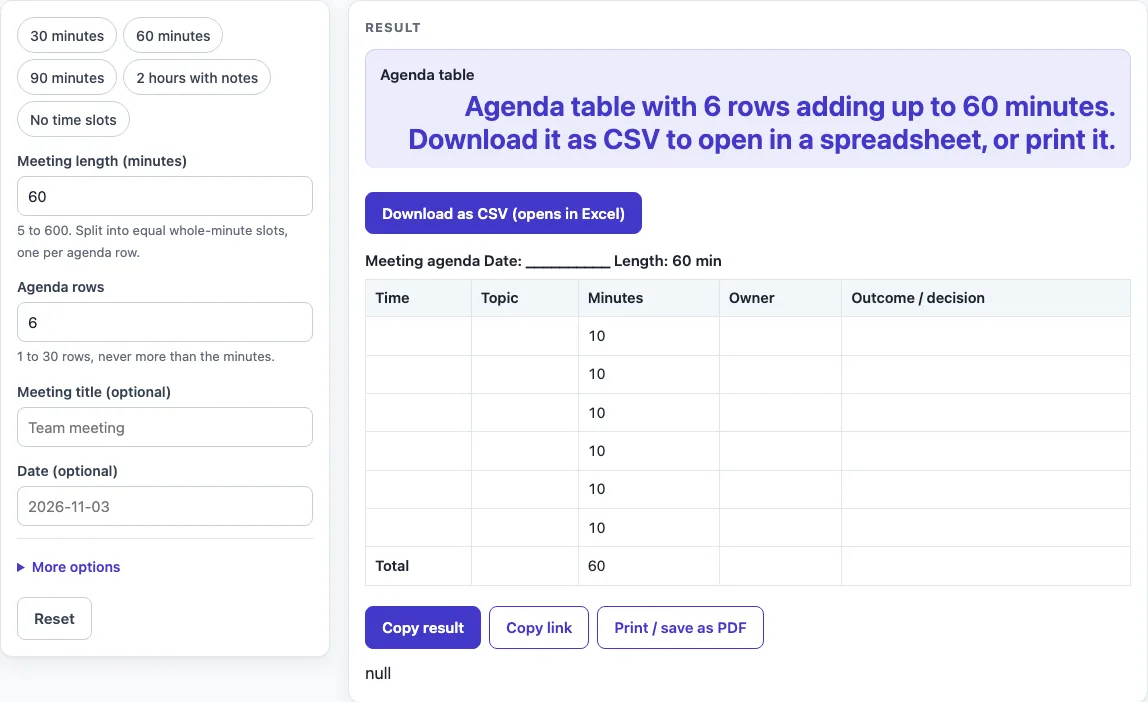
Set the meeting length and number of agenda items to get a table with time slots and a total row. Download it as a CSV file that opens in Excel, or print it.
How to use the meeting agenda template
- Type a “Meeting title (optional)” and a “Date (optional)”. They appear in the heading line above the table.
- Set “Meeting length (minutes)”. The default is 60, and you can enter any value from 5 to 600.
- Set “Agenda rows”. The default is 6, and you can enter any value from 1 to 30.
- If one fits your meeting, click a preset: ‘30 minutes’, ‘60 minutes’, ‘90 minutes’, ‘2 hours with notes’ or ‘No time slots’.
- Open More options and type a “Start time (optional, 24 h)”, such as 09:00, so the Time column shows when each slot begins.
- Leave “Fill in minutes per row” on to split the minutes automatically. Switch it off if you want to enter the minutes yourself.
- In More options, turn on the “Notes column” if you want a sixth column. The “Time column”, “Owner column” and “Outcome column” toggles are also there.
- Type your topics and owners into the blank cells. Check that the Total row shows your meeting length.
- Click ‘Download as CSV (opens in Excel)’ above the table to save the file, or use the Print button to print the agenda.
Printing fits US Letter and A4 portrait paper in black and white. The output line ‘Agenda table’ tells you how many rows the table has and how many minutes they add up to.
How is meeting time split across agenda rows?
The meeting length is divided into equal whole-minute slots, one for each row. A 60-minute meeting over 6 rows gives each row 10 minutes, so every topic gets the same share by default. To give topics different amounts of time, switch off “Fill in minutes per row” and enter your own minutes.
What happens when the minutes do not divide evenly?
When the length does not divide evenly, the first rows each get one extra minute. For example, 30 minutes over 4 rows gives 8, 8, 7 and 7. Ninety minutes over 8 rows gives 12, 12, and then 11 six times. The Total row always equals the sum of the rows, so the minutes always add up to the meeting length.
How are start times worked out for each row?
A start time typed as HH:MM in 24-hour form becomes the start of the first slot, and each later row begins when the slot before it ends. A 09:00 start with 30 minutes over 4 rows gives 09:00, 09:08, 09:16 and 09:23. Times wrap past midnight, so 23:30 is followed by 00:00. Any other format gives a warning and a blank Time column.
Why does the tool show warnings and limits?
The limits keep the table practical: a length from 5 to 600 minutes and from 1 to 30 rows. A length above 600 is cut to 600 with a warning, and a length below 5, zero or text gives an error. If you ask for more rows than minutes, the table uses only as many rows as there are minutes and shows a warning.
What does the Total row show?
The last row is labelled Total and shows the meeting length in the Minutes column. With “Fill in minutes per row” switched off, the Minutes cells, the Time cells and the total are left empty, so you can write them in by hand. The heading line above the table reads like “Team meeting Date: 2026-11-03 Length: 60 min”, using the title and date you typed.
Why does the CSV file open correctly in a spreadsheet?
The CSV file contains the heading line, the column header line, and every row including the total row. Any cell that starts with =, +, - or @ gets an apostrophe in front, so a spreadsheet reads it as text rather than running it as a formula. The file is created in your browser, and nothing you type is stored or uploaded.
Worked examples
| Input | Result |
|---|---|
| 60 minutes, 6 rows | 7 rows including the total row, 5 columns |
| 30 minutes, 4 rows | 5 rows including the total row, 5 columns |
| 90 minutes, 8 rows | 9 rows including the total row, 6 columns |
| 65 minutes, 6 rows | 7 rows including the total row, 5 columns |
Calculated by the tool above; open it with the same values to see each step.
Frequently asked questions
Do I need an account to use this meeting agenda template?
No. The tool is free, needs no sign-up, and runs in your browser. Nothing you type is stored or uploaded.
How many agenda rows can I have?
You can set between 1 and 30 rows with “Agenda rows”. If you ask for more rows than minutes, the table uses as many rows as there are minutes and shows a warning.
What does “Fill in minutes per row” do?
It is on by default and splits the meeting length into equal slots, one per row. Switch it off and the Minutes cells, Time cells and total stay empty so you can fill them by hand.
How do I add a notes column?
Open More options and turn on the “Notes column”, which is off by default and adds a sixth column. The ‘2 hours with notes’ preset also turns it on.
Why is my Time column empty?
Times appear only when you type a start time as HH:MM in 24-hour form, such as 14:30. Any other form gives a warning and a blank Time column.
Can I print the agenda instead of downloading it?
Yes. Use the Print button, which fits US Letter and A4 portrait paper and prints in black and white.
Related tools
- Meeting Minutes Template: Use it to record what was said and decided after a meeting ends.
- Board Meeting Agenda Template: Use it when you need an agenda laid out for a board of directors.
- Nonprofit Board Meeting Agenda Template: Use it for a board agenda set up for a nonprofit organisation.
- One-on-One Meeting Agenda Template: Use it to plan a short meeting between two people.
- Weekly Status Report Template: Use it to report progress on a project each week.