IRS Mileage Log Template
Print a blank mileage log whose columns follow the example log in IRS Publication 463, with optional weekly and year-to-date total rows and a yearly summary. It is not an IRS form.
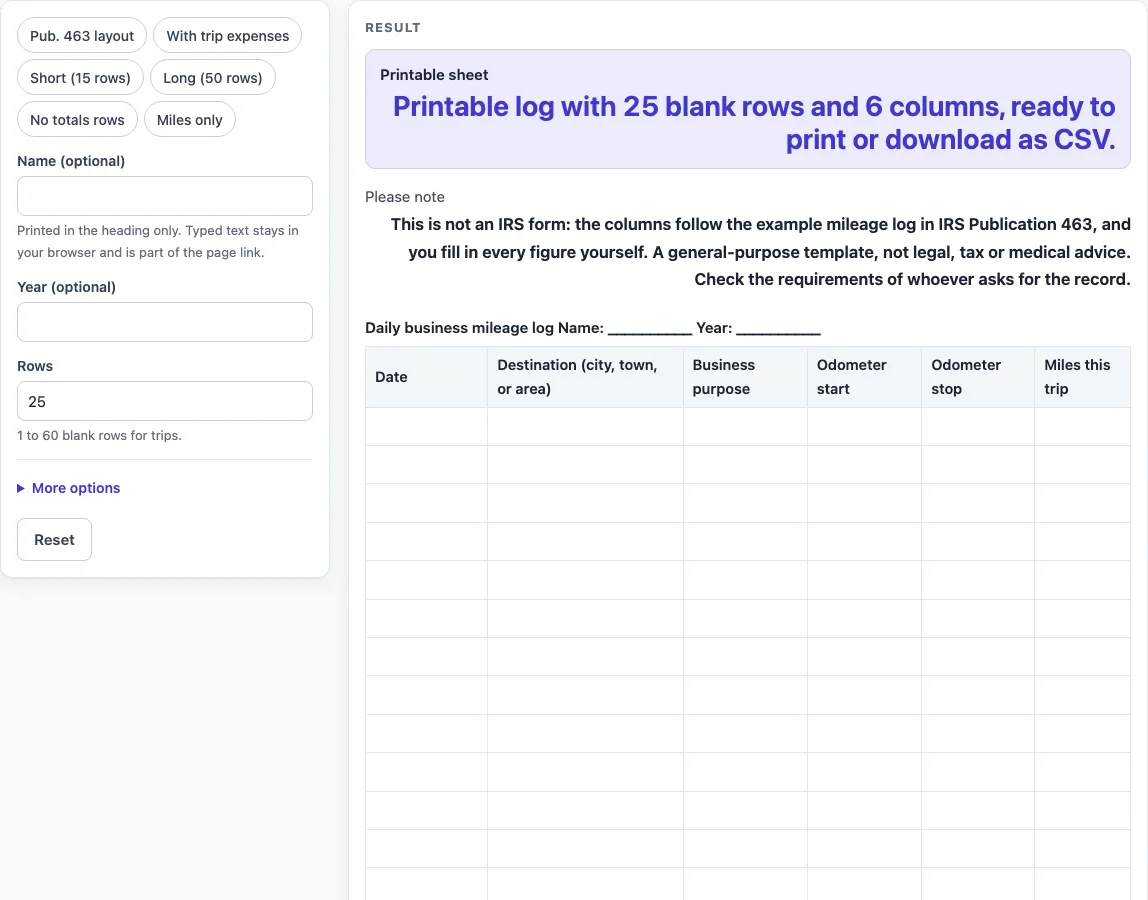
How to use the IRS mileage log template
- Type a name in “Name (optional)” if you want it printed in the heading. Typed text stays in your browser and is part of the page link.
- Enter a year in “Year (optional)” to print it in the heading.
- Set “Rows” to a number from 1 to 60 for the blank trip rows. Higher numbers are cut to 60 with a warning.
- Open “More options” to switch columns on or off: “Odometer start column”, “Odometer stop column”, “Miles this trip column”, “Expense type column (gas, oil, tolls, etc.)” and “Expense amount column”. The two expense columns are off by default.
- Keep or turn off the “Weekly total row” and the “Total year-to-date row”.
- Keep or turn off the “Yearly summary block” to include blank lines for vehicle details and yearly miles.
- Check the “Printable sheet” result and read the “Please note” row.
- Click print, or click “Download as CSV (opens in Excel)” to save both tables.
The presets set several controls at once. “Pub. 463 layout” is the default. “With trip expenses” adds the two expense columns. “Short (15 rows)” and “Long (50 rows)” change the row count. “No totals rows” removes the total rows and the yearly summary. “Miles only” removes the odometer columns, leaving Date, Destination, Business purpose and Miles this trip.
What does an IRS mileage log need to show?
IRS Publication 463 lists the details that car expense records should show. Its Table 5-1 (Transportation) names the date of the use of the car, the business destination, the business purpose and the mileage for each business use. It also names the cost of the car and any improvements, the date you started using the car for business, and the total miles for the year. The tool’s default columns follow the Table 5-2 example: Date, Destination (city, town, or area), Business purpose, Odometer start, Odometer stop and Miles this trip. The yearly summary adds the car and mileage lines that the publication’s records section describes.
The Form 2106 part of the same publication asks for total, business, commuting and other personal mileage. That is why the yearly summary has separate lines for total miles, business miles, commuting miles and other personal miles. These lines are blank for you to fill in. The sheet does not add up the numbers for you.
The publication labels its example “THIS IS NOT AN OFFICIAL INTERNAL REVENUE FORM”. This tool is not an IRS form either. The page does not say the sheet is approved or accepted by the IRS. Check what the person or office asking for the record needs before you rely on it. The sheet only gives you the columns to fill in by hand, and the page states no mileage rate or dollar amount.
When should you write down each trip?
IRS Publication 463 says: “You should record the elements of an expense or of a business use at or near the time of the expense or use.” Noting the destination, purpose and odometer readings soon after each trip follows that wording.
The publication also says: “If you maintain a log on a weekly basis that accounts for use during the week, the log is considered a timely kept record.” A weekly log works well with the “Weekly total row”, which adds a row labelled “Weekly total” at the bottom of the log, where you can write the week’s miles by hand. You can keep one sheet per week or one sheet for the year, and the tool prints either way.
Each row has room for the details the publication lists, which you fill in by hand.
Sources (checked 15 October 2026): irs.gov
Worked examples
| Input | Result |
|---|---|
| 25 trip rows | 6 columns, 2 table(s) |
| 50 trip rows | 6 columns, 2 table(s) |
| 25 trip rows | 8 columns, 2 table(s) |
| 15 trip rows | 6 columns, 1 table(s) |
Calculated by the tool above; open it with the same values to see each step.
Frequently asked questions
Is this irs mileage log template the official IRS form?
No. The columns follow the example mileage log in IRS Publication 463, but the tool is not an IRS form. The sheet itself says this.
Does the IRS approve this mileage log?
The page makes no statement that the sheet is approved by or accepted by the IRS. Check the requirements of whoever asks for your record.
How many trips can one sheet hold?
The “Rows” control accepts 1 to 60 blank rows. If you enter a higher number, the sheet uses 60 and shows a warning. The “Long (50 rows)” preset is the largest preset.
Can I log trip expenses as well as miles?
Yes. Switch on the “Expense type column (gas, oil, tolls, etc.)” and “Expense amount column” under “More options”, or choose the “With trip expenses” preset.
Does the tool calculate my mileage or deduction?
No. Nothing is calculated. You fill in every figure yourself, and the page does not state a mileage rate or dollar amount.
Is my information saved or sent anywhere?
Everything runs in your browser. Nothing is saved or uploaded, and no sign-up is needed. Text you type in the name field stays in your browser and is part of the page link.
Related tools
- Car Maintenance Log: use it to record service visits and repairs for the same vehicle.
- Driver’s Daily Log: use it to record each day’s driving in one place.
- Fuel Log: use it to record fuel fill-ups.
- Mileage Log: use it for a general mileage record that is not set up for the IRS example layout.
- Trip Log: use it to note the details of individual trips.