Garden Journal
Pick the columns, the number of rows and weekly or daily dates, then print a blank garden journal or download it as a CSV file.
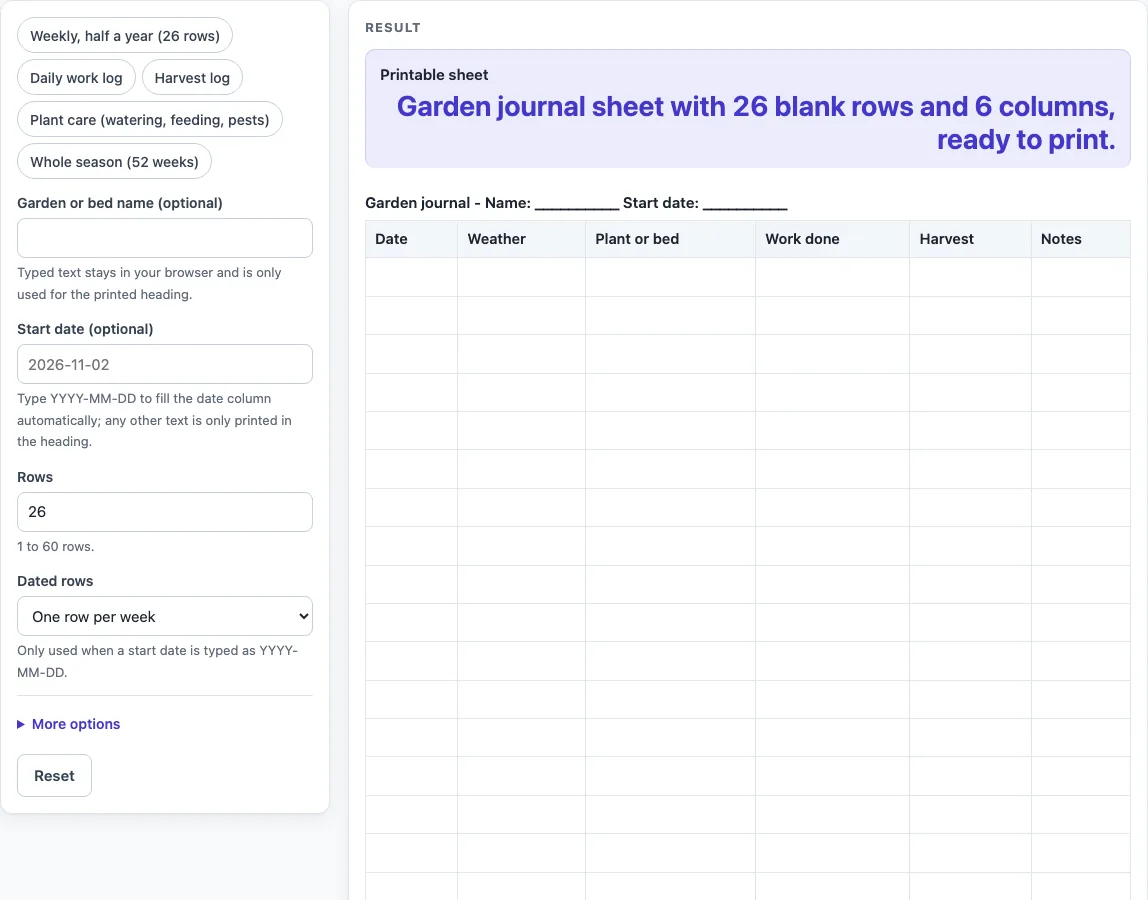
Garden Journal is a free, browser-based tool that builds a blank, printable table for keeping notes about a garden by hand. You set the number of rows, an optional garden or bed name and an optional start date, then choose which columns to include, such as Weather, Watering, Harvest or Pests and problems.
The page runs in your browser and needs no sign-up. Fill in the settings, print the sheet and keep it with your tools or in a notebook. The sheet holds only what you write, so it works as a plain record of your own garden rather than a planner with set tasks.
How to use the Garden Journal
- Type a name in “Garden or bed name (optional)” to appear in the printed heading.
- Enter a start date in “Start date (optional)” as YYYY-MM-DD, for example 2027-03-25, so the Date column fills with calendar dates.
- Set “Rows” to a number from 1 to 60. The default is 26.
- Choose “Dated rows”: One row per day or One row per week. The default is weekly.
- Open More options and tick or untick each “Column:
” checkbox. Date, Weather, Plant or bed, Work done, Harvest and Notes are on by default. Watering, Feeding or treatment and Pests and problems are off. - Read any warning above the sheet and adjust the settings if needed. For example, a start date that is not in YYYY-MM-DD form leaves the Date column blank and shows a warning.
- Press Print to print the sheet, or press “Download as CSV (opens in Excel)” to save the same tables as a .csv file.
You can also press one of the preset buttons to start from a ready-made layout, then change any setting afterwards. Settings and typed text can appear in the page link (the address after ?s=), so remove any private details from the form before you share the link.
What do you write in a garden journal?
Write one row for each thing that happens in the garden, and fill in the columns that match what you want to record. The default columns cover the basics: the date, the weather, the plant or bed you worked on, the work done, what you harvested and any notes.
Each column is a category, so keep each entry short and put the detail in the right place. Weather goes in its own column, and anything that doesn’t fit the others goes in Notes. The tool does not decide what counts as useful, so the sheet is only as good as what you write on it.
Columns can be changed to suit the job. The “Daily work log” preset uses Date, Weather, Work done and Notes. The “Harvest log” preset uses Date, Plant or bed, Harvest and Notes. The “Plant care (watering, feeding, pests)” preset adds Watering, Feeding or treatment and Pests and problems. Columns are switched off by default when they are less common, which keeps the sheet clear.
Using more than 7 columns leaves little room to write, so the tool warns you. Turning a few off gives each entry more space.
How often should I write in my garden journal?
Choose one row per day or one row per week, depending on how much you want to record. The tool sets weekly as the default. When you use weekly rows, the Date column steps by 7 days, so a start date of 2027-03-25 gives 2027-04-01 and then 2027-04-08.
Daily rows suit a busy period with a lot of work. Weekly rows suit a longer record. The presets show the difference: “Daily work log” has 31 rows, “Weekly, half a year (26 rows)” has 26 rows and “Whole season (52 weeks)” has 52 rows. Rows can be set from 1 to 60. Any number above 60 is cut to 60 with a warning, so the longest sheet is 60 rows.
The Date column only fills with calendar dates when the start date is typed as YYYY-MM-DD. The tool handles month ends, year ends and leap days in that case.
Worked examples
| Input | Result |
|---|---|
| 26 rows, 6 columns | 26 blank rows to fill in by hand |
| 30 rows, 4 columns | 30 blank rows to fill in by hand |
| 20 rows, 6 columns | 20 blank rows to fill in by hand |
| 52 rows, 4 columns | 52 blank rows to fill in by hand |
Calculated by the tool above; open it with the same values to see each step.
Frequently asked questions
Can I keep a harvest log?
Yes. The Harvest column is on by default, and the “Harvest log” preset sets up 30 rows with Date, Plant or bed, Harvest and Notes columns.
Can I track watering, feeding and pests?
Yes. Tick the Watering, Feeding or treatment and Pests and problems columns under More options, or press the “Plant care (watering, feeding, pests)” preset, which gives 20 rows. The sheet only holds what you write and does not suggest when to water or feed.
Can I print a whole season?
Yes. The “Whole season (52 weeks)” preset gives 52 weekly rows with Date, Weather, Work done and Notes columns. Because the row limit is 60, a 52-row season fits within it, and you can press Print to print the sheet.
Is anything I type saved or uploaded?
No. Nothing you type is stored or uploaded. The page runs in your browser, is free and needs no sign-up.
What happens if I type the start date in another format?
Any text that is not YYYY-MM-DD is printed in the heading, but the Date column stays blank and a warning tells you so. Type the date as 2027-03-25, for example, to fill the column with calendar dates.
Why does the tool show a column warning?
Two warnings are possible. “More than 7 columns are switched on” means the printed sheet will have little writing space, so turn some columns off. “No columns are switched on” means the sheet is empty, so turn at least one column on.
Related tools
- Daily Log: Printable daily log with date, time, activity, notes and initials.
- Equipment Maintenance Log: Printable equipment maintenance log with task, meter, parts, cost and next due.
- Temperature Log: Printable temperature log with date, time, reading, initials and corrective action.
- Gratitude Journal: Printable gratitude journal pages with daily prompts.