Fuel Log
Choose gallons and miles or litres and kilometres, then print the fuel log or download it as CSV. An empty MPG column can be added to fill in yourself.
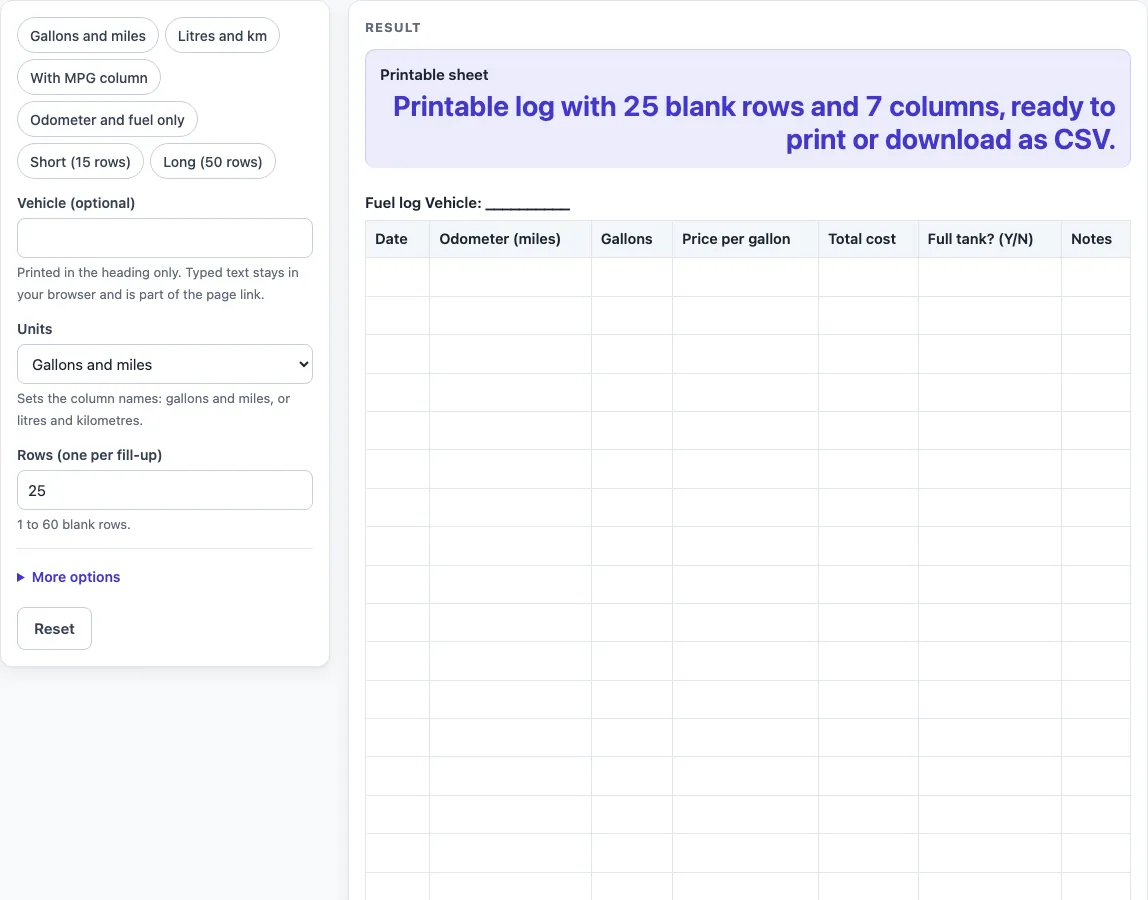
How to use the Fuel log
- Type a name in “Vehicle (optional)” if you want one printed in the heading. The name appears in the heading line only, and what you type stays in your browser and is part of the page link.
- Pick a setting in “Units”. Gallons and miles is the default. Litres and kilometres changes the column names to match.
- Set “Rows (one per fill-up)” to a number from 1 to 60. Numbers above 60 are cut to 60 with a warning. Zero, text or an empty box gives an error.
- Open “More options” to turn columns on or off with “Odometer column”, “Fuel amount column”, “Price per unit column”, “Total cost column”, “Full tank? column”, “Efficiency column (blank)” and “Notes column”.
- Or tap a preset chip to set units, columns and rows together: “Gallons and miles”, “Litres and km”, “With MPG column”, “Odometer and fuel only”, “Short (15 rows)” or “Long (50 rows)”.
- Check the “Printable sheet” result. It reads something like “Printable log with 25 blank rows and 7 columns, ready to print or download as CSV.”
- Print the sheet, or select “Download as CSV (opens in Excel)” to save the same table.
Write each fill-up on its own row as you fill the tank. Nothing is calculated on the sheet, so any totals or efficiency figures are yours to write in.
What does a fuel log record?
A fuel log records each fill-up on its own row. Each row can hold the date, the odometer reading, the amount of fuel added, the price per unit, the total cost, whether the tank was full, and any notes you want to add. The metric setting uses the same layout with litres and kilometres in place of gallons and miles. The tool prints no currency symbol, so write the currency with the amount yourself.
Why does the “Full tank?” column matter?
The “Full tank?” column uses Y or N to show whether the tank was filled to the top at that stop. The sheet does nothing with the answer: it is a note for you, so you can see later which rows were full fill-ups and which were partial. Writing the status down every time keeps the log consistent, and any efficiency figure you work out from the rows is yours to check.
How do you work out MPG from a fuel log?
MPG is miles divided by gallons. The efficiency column is labelled MPG (miles / gallons) with the gallons and miles setting, and km per litre (km / litres) with the litres and kilometres setting. The sheet uses plain arithmetic: distance divided by fuel used, and it leaves the answer to you.
Here is an example. The odometer reads 45,200 miles at one full fill-up and 45,500 miles at the next. The second fill-up adds 10 gallons. The distance is 300 miles, so 300 divided by 10 gives 30 MPG. Write that result in the “Efficiency column (blank)” if you use that column. Keep the units the same across the whole sheet so every row can be compared with the others.
Why keep a fuel log over time?
A log shows a history rather than a single trip. When each fill-up is written down in the same units, you can look back down the rows and see how the numbers change. Because each row is dated, the log also shows when each fill-up happened. The sheet does not analyse the entries for you, so reading the pattern is up to you. The Notes column is useful for anything that explains a row, such as a different station or a journey that you want to remember later.
Worked examples
| Input | Result |
|---|---|
| 25 rows, Gallons and miles | 7 columns |
| 30 rows, Litres and kilometres | 7 columns |
| 25 rows, Gallons and miles | 7 columns |
| 15 rows, Gallons and miles | 5 columns |
Calculated by the tool above; open it with the same values to see each step.
Frequently asked questions
Is the Fuel log free to use?
Yes. The tool is free and runs in your browser.
Do I need to sign up?
No. There is no sign-up, so you can open the tool and start filling in the sheet straight away.
Is what I enter saved or uploaded?
No. Nothing is saved or uploaded. The vehicle name you type stays in your browser but can become part of the page link, so leave it blank if you share the link.
Does the Fuel log calculate MPG for me?
No. The efficiency column is blank, and nothing is calculated on the sheet. You work out the result yourself using distance divided by fuel used, then write it in.
Can I switch between gallons and litres?
Yes. The “Units” control sets the column names to gallons and miles, or to litres and kilometres. Choose the setting you want before you print or download the sheet, so the headings match the figures you write.
Can I use this sheet for taxes or as legal proof?
The tool is a general-purpose blank sheet. It is not tax or legal advice, and it cannot tell you what a record needs to contain for any particular purpose. Check any requirement with the right authority before you rely on the sheet.
Related tools
- Car Maintenance Log: use it to keep a record of servicing and repairs alongside your fuel entries.
- Driver’s Daily Log: use it to record each day’s driving in one place.
- IRS Mileage Log Template: use it when you want a mileage-focused sheet that you keep separate from your fill-ups.
- Mileage Log: use it when you want to record trips by distance and fuel is not part of the record.
- Trip Log: use it when you want to record individual journeys.