Fax Cover Sheet
Type who the fax is for, who it is from and how many pages you are sending, then print the fax cover sheet. Nothing is uploaded.
Fax Cover Sheet is a free tool that builds a printable one-page fax cover sheet from the details you type. It runs in your browser, needs no sign-up, and nothing you type is uploaded.
A fax cover sheet is the first page of a fax. It tells the receiver who the fax is for, who sent it, how many pages to expect and how to reach the sender. The tool fills a table with your To, From, phone, date, page count and subject. It can also add a row of tick boxes, a message area with writing lines and an optional confidentiality notice. Empty fields print as blank cells, so you can finish the sheet by hand. The tool does not send faxes. It only makes the page for you to print.
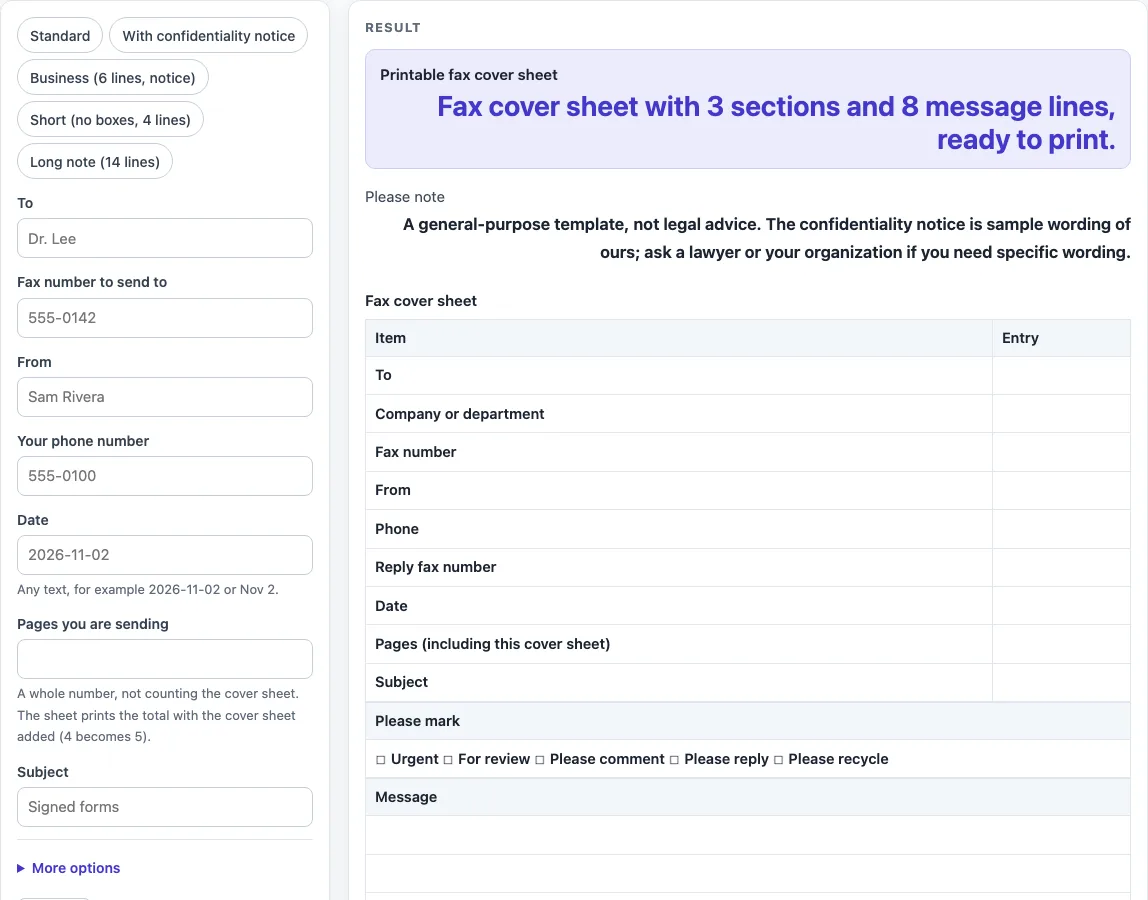
How to use the Fax Cover Sheet
- Pick a preset above the form if one fits: Standard, With confidentiality notice, Business (6 lines, notice), Short (no boxes, 4 lines) or Long note (14 lines).
- Type who the fax is for in To and the receiving number in Fax number to send to.
- Type your name in From, your number in Your phone number and a date in Date. The date field accepts any text.
- In Pages you are sending, enter a whole number from 0 to 999. Do not count the cover sheet. Leave it empty if you want to write the number by hand.
- Type a short line in Subject.
- Open More options to add a heading with your name or company, the company or department you are sending to, your fax number for replies and a message of up to 400 characters.
- Set Message lines from 1 to 20. The default is 8.
- Keep Tick boxes on to print Urgent, For review, Please comment, Please reply and Please recycle, or turn them off. Turn on Confidentiality notice if you want it printed.
- Press Print.
The Print button sends only the heading and the bordered tables to the printer. The Download as CSV (opens in Excel) button saves the same tables as a spreadsheet file. Typed text can appear in the page link (the ?s= address), so check the link before you share it.
What goes on a fax cover sheet?
A fax cover sheet carries the details that identify the fax and its sender. It normally includes the recipient’s name and fax number, the sender’s name and phone number, the date, the number of pages and a subject. This tool prints those details as a table under a heading. It can also add tick boxes for Urgent, For review, Please comment, Please reply and Please recycle, a message box with writing lines and an optional confidentiality notice.
Do I need a cover sheet when I send a fax?
Not always. Whether a cover page is required depends on the person or service you are faxing, so ask them if you are unsure. A cover sheet gives the receiver the sender’s details and page count on the first page. The tool makes no claim either way about what a particular recipient needs.
How many pages do I write on a fax cover sheet?
Write the number of pages you are sending, without the cover sheet. The printed total includes the cover, so the receiver knows how many sheets to expect. In the tool, you type 4 and it prints 5. Typing 0 prints 1. If you do not know the count before printing, leave the field empty and write the number in by hand.
Should a fax cover sheet have a confidentiality notice?
A notice is optional. It is worth adding when the fax may contain private information, because it asks anyone who received the fax by mistake to call the sender and destroy the copies. The tool’s notice is sample wording and is not legal advice. People who need specific wording, such as a healthcare provider or a law office, should ask their organization or a lawyer. The notice is off by default. Turn it on under More options or use the With confidentiality notice preset.
Can I fill in the fax cover sheet on screen before printing?
Yes. Type each detail into the form, then press Print. Fields you leave empty print as blank cells, so you can write those details in by hand after printing. You can fill in some fields on screen and leave others for later.
Can I use this for an online fax service?
The tool does not send faxes or connect to any service, so it cannot submit anything to an online fax provider. It only makes a printable page. If your provider asks for a cover page, check its instructions for the format it accepts. The page this tool makes is meant to be printed on paper.
Worked examples
| Input | Result |
|---|---|
| 8 message lines | 3 sections, 18 rows |
| 8 message lines | 4 sections, 19 rows |
| 4 message lines | 2 sections, 13 rows |
| 14 message lines | 3 sections, 24 rows |
Calculated by the tool above; open it with the same values to see each step.
Frequently asked questions
Is my typed information uploaded anywhere?
No. The tool runs in your browser, and nothing you type is uploaded. Typed text can still appear in the page link (the ?s= address), so check the link before you share it.
Can I use the sheets at work or sell them?
Yes. The sheets you make are free to print and use anywhere, including at work, in class, for a club, or to sell or give away. No credit is needed.
What happens if I leave a field empty?
It prints as a blank cell so you can write the detail in by hand. This also works for the page count. Leave Pages you are sending empty to write the number yourself.
What counts as a valid page number?
A whole number from 0 to 999. Anything else, such as 2.5 or “three”, gives an error.
How many message lines should I choose?
You can choose from 1 to 20 lines, and the default is 8. The Long note preset uses 14 lines, and the Short preset uses 4 lines with no tick boxes. Choose more lines if you expect to write a longer note by hand.
Can I save the table as a spreadsheet?
Yes. The Download as CSV (opens in Excel) button saves the same tables. Use the Print button when you need the paper copy.
Related tools
- Call Log Template: use it to record incoming and outgoing calls, such as the ones you make after faxing a document.
- Sign-In Sheet: use it when you need a printed list for people to sign as they arrive at a meeting or event.
- Incident Report Template: use it to write down what happened, when and who was involved, for a formal record.
- Meeting Minutes Template: use it to print a form for attendance, agenda items and action items.
- Weekly Status Report Template: use it to print a weekly project status report with risks and metrics tables.
- Daily Report Template: use it for a blank daily report for an office, field, retail or school.