Daily Report Template
Pick the type of report, how many task rows and which sections to include, then print the blank form or download it as a CSV.
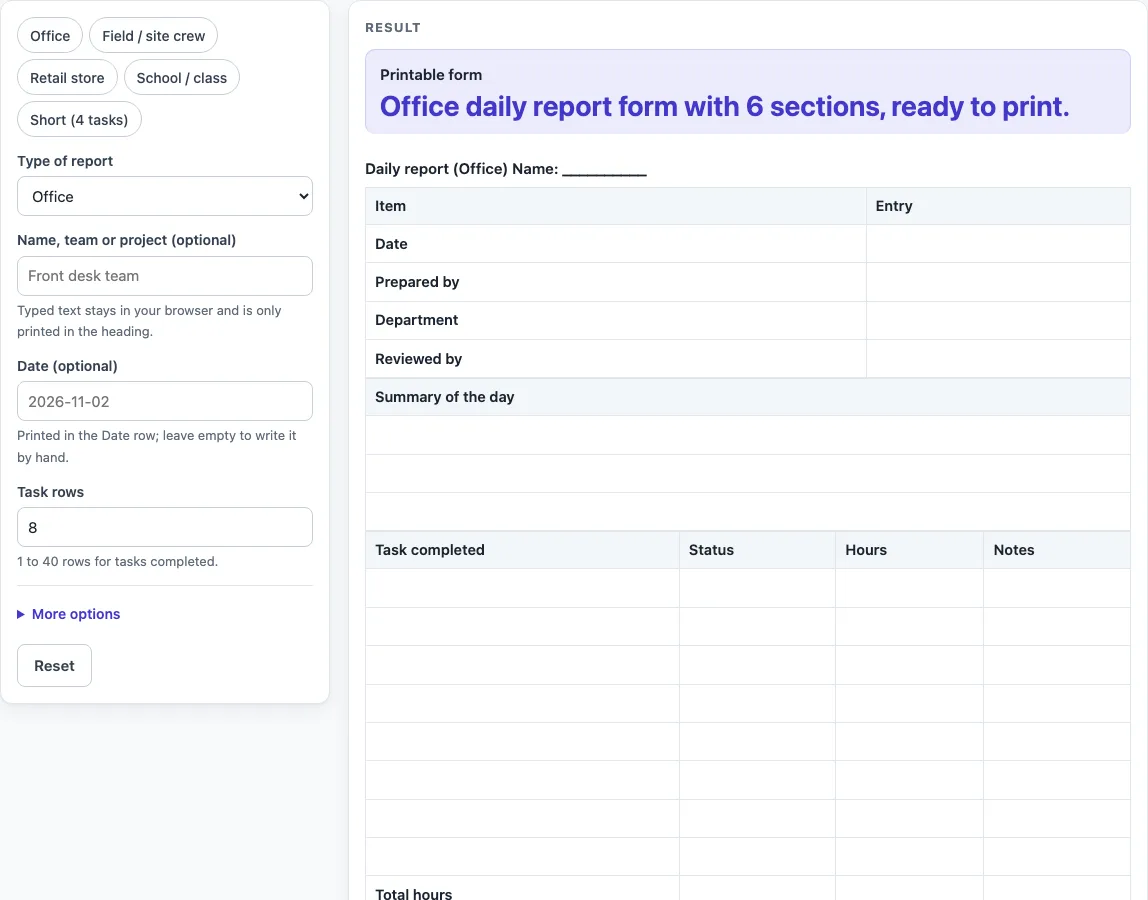
How to use the Daily Report Template
- Open “Type of report” and choose Office, Field / site, Retail or School. The header and notes labels change to suit the type you pick.
- Or click a preset chip: “Office”, “Field / site crew”, “Retail store”, “School / class” or “Short (4 tasks)”.
- Type a name, team or project in “Name, team or project (optional)”.
- Pick a date in “Date (optional)”. A typed date is placed in the Date entry of the header.
- Set “Task rows” to a number from 1 to 40. The default is 8. Numbers above 40 are cut with a warning, and 0 or text gives an error.
- Under “More options”, switch “Hours column and total row” off if you do not need hours. The Hours column and the Total hours row are removed.
- Turn “Notes for the day section”, “Issues table”, “Tomorrow’s plan table” or “Sign-off table” on or off. Sign-off is off by default.
- Check the “Printable form” preview. For the default Office form its line reads “Office daily report form with 6 sections, ready to print.”
- Click print, or click “Download as CSV (opens in Excel)” to get the tables as a CSV file.
The default Office form has 6 sections, and its tasks table has 9 rows (8 task rows plus the Total hours row). Change any setting and the sheet updates to match.
What is a daily report template?
A daily report template is a standard blank layout that you fill in once for each working day. It gives every entry the same parts, so the record is easy to read and compare from one day to the next. The form works as a simple log of the day’s activity rather than a formal document.
What goes on a daily report?
Most daily reports start with a header that says who prepared the report and for what day. The body then covers a summary of the day, the tasks completed with their status, notes, any issues or blockers, and a plan for tomorrow. Each part answers one question: what was done, what got in the way, and what happens next.
Why does the report type change the labels?
The same structure can serve different kinds of work, but the words people use differ. An office report tracks meetings and documents, a field report tracks crew and equipment, a retail report tracks sales and deliveries, and a school report tracks attendance and messages. Choosing a type swaps in the matching header and notes labels so the sheet fits the setting without you rebuilding it.
How many task rows does a daily report need?
Count the separate jobs you expect to report on that day, then set “Task rows” to match. The default is 8, and the limit is 40 rows. Keeping the number close to the real count leaves less blank space on the printed page, while a few spare rows help when a day runs busier than usual.
What do the Hours and Total hours rows do?
When the “Hours column and total row” option is on, each task row has a place to write time spent, and a Total hours row at the bottom adds the section up. Switch the option off if your work is not tracked by hours, and the column and total row are both removed from the sheet.
Why use a blank sheet instead of a fixed form?
A blank sheet lets you decide what to record, so the form reflects your work rather than someone else’s assumptions. You can keep sections you use and drop the rest, which keeps each printed page focused. Because the layout is a general design, it makes no legal, HR or school-policy claims, so check any rules that apply to you separately.
Worked examples
| Input | Result |
|---|---|
| Office report | 6 sections |
| Field / site report | 6 sections |
| Retail report | 7 sections |
| School report | 3 sections |
Calculated by the tool above; open it with the same values to see each step.
Frequently asked questions
Is this daily report template free to use?
Yes. The tool is free and runs in your browser, so there is no sign-up step. You can change the settings and print the sheet as many times as you need.
Is my data saved or uploaded?
No. Everything happens in your browser, and nothing you enter is uploaded or saved to our servers. If you want to keep a copy, print the form or use the “Download as CSV (opens in Excel)” button.
Which report type should I pick?
Pick the type that matches your work: Office, Field / site, Retail or School. If none fits exactly, choose the closest one and type your own team or project in “Name, team or project (optional)”. The labels will still help you record the day.
How many rows can the tasks table have?
The tasks table accepts 1 to 40 rows, and the default is 8. A number above 40 is cut with a warning, while 0 or text gives an error. You can change the number at any time before printing.
What does the sign-off table contain?
When you turn on “Sign-off table”, it adds a table with the columns Role, Name, Signature and Date, and two rows: Prepared by and Reviewed by. Leave the cells blank and fill them in by hand after printing.
Can I leave out the sign-off section?
Yes. Sign-off is off by default, so it only appears if you turn on “Sign-off table”. Leave it off for everyday logs, or turn it on when your team wants a signature line on the printed page.
Related tools
- Construction Daily Report Template: Use this when your daily reports come from a building or construction site and you want that wording from the start.
- Daily Log: Use this when you want a simple running record of each day without a full report layout.
- Equipment Maintenance Log: Use this to record the service and upkeep of equipment in one place.
- Expense Log: Use this to list the day’s spending entries in a simple table.
- Temperature Log: Use this when you need a record of temperature readings over time.