Construction Daily Report Template
Choose the sections your site report needs and how many crew rows to show, then print the blank form or download it as a CSV.
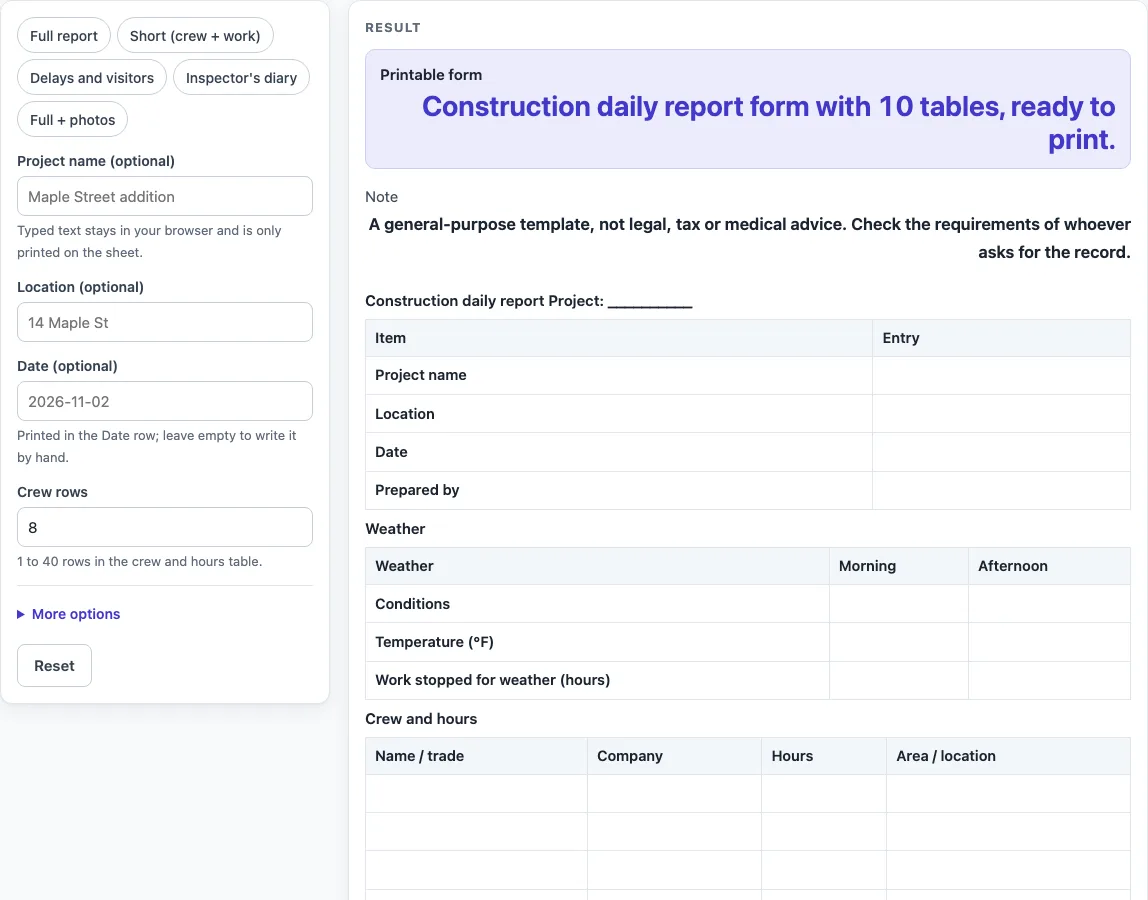
How to use the construction daily report template
- Type the project name, location and date into “Project name (optional)”, “Location (optional)” and “Date (optional)”. These fill the Project name, Location and Date rows of the header.
- Optionally click a preset: “Full report”, “Short (crew + work)”, “Delays and visitors”, “Inspector’s diary” or “Full + photos”. A preset switches sections on or off, and you can change them afterwards.
- Open More options and turn sections on or off with “Weather and temperature”, “Crew and hours”, “Equipment”, “Work performed”, “Materials delivered”, “Delays”, “Visitors”, “Safety notes”, “Photos log”, “Instructions given or received” and “Signatures”. By default, every section is on except “Photos log” and “Instructions given or received”.
- Set “Crew rows” from 1 to 40. The default is 8. Above 40 is cut back with a warning. Zero or text gives an error while the crew table is on.
- Open More options and choose “Temperature unit”: “°F” or “°C”.
- Check the sheet. If you see a warning about more than 7 columns, switch off a column or print in landscape.
- Click print to get the “Printable form”, or click “Download as CSV (opens in Excel)” to save the tables as a CSV file.
The printed form is your paper copy. The CSV file is made in your browser, so keep it on your own device and add your notes before you share it.
What does a construction daily report record?
A construction daily report records what happened on site on one day. It normally covers the date, weather, hours worked, crew, equipment, the work done, materials received, delays, visitors and safety notes. This template follows the kinds of information that the NCDOT inspector daily report guide lists: date, weather, hours worked, forces and equipment, description of operations, instructions to and from the contractor, delays and visitors. The exact tables, columns and row counts are the tool’s own design.
Which sections should a daily report include?
Include the sections your job needs and leave out the rest. The default setting turns on every section except Photos and Instructions, which gives the project header and 9 sections. The “Short (crew + work)” preset is smaller: the header plus weather, crew (6 rows), work performed and signatures, 4 tables in all. “Inspector’s diary” keeps weather, crew, equipment, work performed, delays, visitors, instructions and signatures, and switches off materials, safety notes and photos. “Full + photos” is the default set with Photos added. Turning sections off keeps the sheet shorter and easier to read when printed.
How do crew hours and delays fit together?
The crew table records each person’s name or trade, company, hours and work area, then adds a Total hours row. The delays table records the delay and its cause, start time, resume time and hours lost. Keeping these two tables together shows how many hours were worked and how many were lost, which makes the day easier to review.
Why do some tables have a fixed number of rows?
Some tables have fixed row counts: equipment has 5 rows, work performed has 6, materials has 4, delays has 3, visitors has 3, safety notes has 3, photos has 3, instructions has 3, and signatures has 2 (Prepared by and Reviewed by). Only the crew table can be changed, from 1 to 40 rows. If you need more lines for a fixed table, print a second sheet for that day.
What should I check before I rely on this form?
The template is general-purpose. It is not legal, tax or medical advice, and it does not tell you what a contract, site rule or law requires you to record. Check the requirements of whoever asks for the record, such as the client, the owner or the inspector, and add any items they need.
Sources (checked 15 October 2026): connect.ncdot.gov
Worked examples
| Input | Result |
|---|---|
| 8 crew rows | 9 sections after the project header |
| 12 crew rows | 9 sections after the project header |
| 8 crew rows | 11 sections after the project header |
| 5 crew rows | 5 sections after the project header |
Calculated by the tool above; open it with the same values to see each step.
Frequently asked questions
Is this construction daily report template free to use?
Yes. The tool is free and needs no sign-up.
Is my data saved or uploaded?
No. Everything runs in your browser. Nothing is saved or uploaded by the tool.
Can I change the temperature unit?
Yes. Open More options and choose “°F” or “°C” for “Temperature unit”. The Temperature row label in the weather table updates to match. The option only shows while “Weather and temperature” is on.
How many crew rows can I have?
You can set “Crew rows” from 1 to 40, with a default of 8. Values above 40 are cut back with a warning, and 0 or text shows an error while the crew table is on.
Can I use this as an official record?
It is a general-purpose template, not legal, tax or medical advice. The page does not say what a contract, site rule or law requires you to record, so check what the person or body asking for the record needs before you rely on it, and add any items they ask for.
What is the difference between the print and CSV options?
“Printable form” gives you a paper copy of the sheet. “Download as CSV (opens in Excel)” saves the tables as a CSV file that you can open in a spreadsheet program.
Related tools
- Daily Log: Use it for a simple running record of activities for any day.
- Daily Report Template: Use it when you want a general daily report form outside construction.
- Equipment Maintenance Log: Use it to track service and repair records for machines and vehicles.
- Expense Log: Use it to list spending and receipts for a job or trip.
- Fridge Temperature Log: Use it to record fridge readings over time.
- Petty Cash Log: Use it to track small cash payments and the balance left.
- Restroom Cleaning Log: Use it to record when cleaning tasks were done and by whom.
- Temperature Log: Use it to record temperature readings for any place or item you monitor.