Car Maintenance Log
Type the vehicle details, choose the columns and an optional list of service names, then print the car maintenance log or download it as CSV.
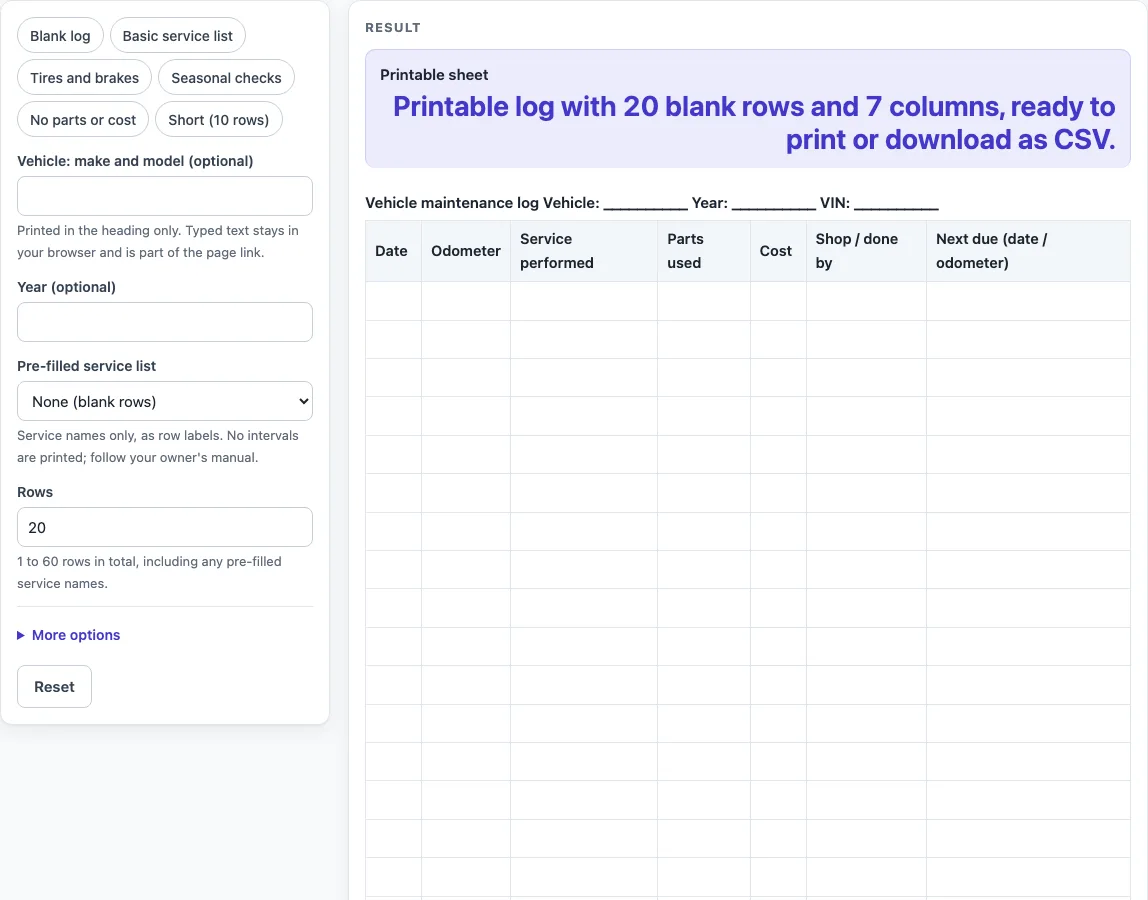
How to use the Car Maintenance Log
- Type the make and model in the “Vehicle: make and model (optional)” box. Add the “Year (optional)” and “VIN (optional)” if you want them printed in the heading.
- Pick a preset chip: “Blank log”, “Basic service list”, “Tires and brakes”, “Seasonal checks”, “No parts or cost”, or “Short (10 rows)”.
- Open the “Pre-filled service list” control and choose None, Basic service jobs, Tires and brakes, or Seasonal checks. The names fill the Service performed column as row labels.
- Set “Rows” to a number from 1 to 60. The count includes any pre-filled service names.
- Open “More options” and switch columns on or off: “Odometer column”, “Service performed column”, “Parts column”, “Cost column”, “Shop / done by column”, “Next due column”, and “Notes column”.
- Check the “Printable sheet” line. It reads, for example, “Printable log with 25 blank rows and 7 columns, ready to print or download as CSV.”
- Print the sheet, or select “Download as CSV (opens in Excel)” to save the same table.
Presets set the row count and columns for you, so you can start from one and change it. A pre-filled list longer than the row count is cut to fit. If the Service performed column is switched off, the list is ignored. For example, Basic service list gives 20 rows, and the first 8 have a service name in the third column.
What should a car maintenance log record?
A car maintenance log works as a record of what happened to your car. Each entry should answer a few simple questions: when the work was done, how many miles or kilometres the car had covered, what was done, which parts were used, what it cost, and who did the work. The default columns follow that pattern: Date, Odometer, Service performed, Parts used, Cost, Shop / done by, and Next due (date / odometer). Notes is an optional eighth column for anything that does not fit elsewhere.
Writing facts in each row is the main habit that makes a log useful. A line such as “Oil and filter change, paid at a local shop” tells you far more later than “oil done.” The Odometer column matters most for this, because it places each job on the car’s timeline. The “Next due” column lets you note when the next job is expected, whether by date or by odometer reading, and you fill that in from your own source.
Why does the pre-filled service list only label rows?
The pre-filled service list is a convenience for writing names. It gives row labels such as Oil and filter change, Tire rotation, Brake inspection, or Winter tires on, and nothing more. The tool prints no service intervals, mileages or maintenance advice. Those details belong in your owner’s manual, and the manual is the right source for when each job is due. The list is a starting point for your own entries, not a schedule.
The presets are starting points: Blank log, Basic service list (20 rows), Tires and brakes (15 rows), Seasonal checks (15 rows), No parts or cost (five columns) and Short (10 rows). After choosing one you can still change the rows and columns, and the optional column toggles sit under “More options”. The Download as CSV button saves the same table, so you can keep going in a spreadsheet when the paper sheet is full.
The layout, column names and presets are the tool’s own design. They are general-purpose, so you can change the rows and columns to suit your car or your shop. A row limit applies: rows can be from 1 to 60 in total, and a longer request is cut to 60 with a warning. A row count of zero, text or an empty value returns an error, so the sheet always has at least one row.
Worked examples
| Input | Result |
|---|---|
| 20 rows, list: None (blank rows) | 7 columns |
| 20 rows, list: Basic service jobs | 7 columns |
| 15 rows, list: Tires and brakes | 6 columns |
| 20 rows, list: Seasonal checks | 7 columns |
Calculated by the tool above; open it with the same values to see each step.
Frequently asked questions
Is this the same as an auto maintenance log or a vehicle maintenance log?
Yes, the names describe the same kind of record. Whether you call it an auto maintenance log, a vehicle maintenance log or a car maintenance log, the sheet has the same columns and rows. Pick whichever name you search for most, since the layout is identical.
Does the tool tell me when my car needs service?
No. The service names are only row labels in the Service performed column. No service intervals, mileages or maintenance advice are printed. Use your owner’s manual to decide when each job is due, then write that date or odometer reading in the “Next due” column yourself.
Is my make, model, year or VIN saved anywhere?
No. Nothing is saved or uploaded. Typed text stays in your browser, but it can become part of the page link, and that includes the VIN. If you share the link, leave the VIN blank and write it by hand on the printed sheet.
What happens if I need more than 60 rows?
The sheet uses 60 rows and shows a warning: “Rows is limited to 60, so the sheet uses 60.” If you need more entries, print the sheet and continue on a second copy, or download the CSV and keep going in a spreadsheet.
Can I remove the cost and parts columns?
Yes. The “No parts or cost” preset drops the Parts used and Cost columns, leaving five columns. You can also switch off the “Parts column” and “Cost column” controls under “More options” to get a similar result.
Is the tool free, and do I need an account?
The tool is free. It runs in your browser, and you do not need to sign up. Nothing is saved or uploaded, so keep a printed copy or a downloaded CSV file if you want to keep your entries.
Related tools
- Fuel Log: Use it to record fill-ups alongside your service entries.
- Mileage Log: Use it when you want a general record of miles driven.
- Trip Log: Use it to note individual journeys by date and distance.
- Driver’s Daily Log: Use it to record each day’s driving in one place.
- IRS Mileage Log Template: Use it as a mileage-record layout, with its own columns for trips.