Call Log Template
Pick the columns and the number of rows, then print the call log or download it as a CSV file for a spreadsheet. Nothing is saved or uploaded.
A call log template is a blank sheet with a row for each phone call, so you can write down the date, the caller, the message and what you did about it. This tool builds one for you in your browser, with the number of rows and columns you choose, and you can print it or download it as a CSV file.
It is free and has no sign-up. Nothing you type is stored or uploaded, so the sheet stays on your device until you print or download it. Five presets give you a starting point for sales calls, support calls, phone messages, client calls and short logs. You can change the title, the number of rows and the columns to suit your team, and then keep your records on paper or in a spreadsheet.
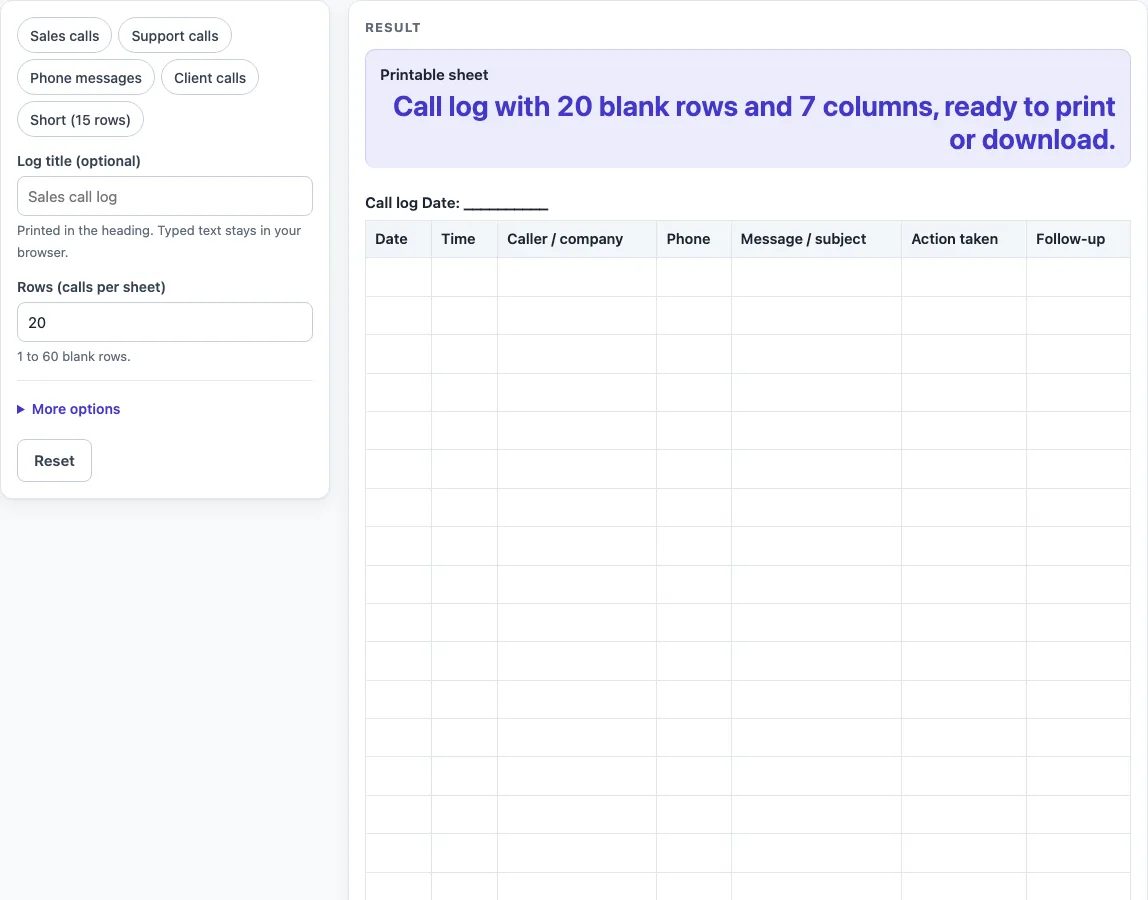
How to use the Call log template
- Choose a preset if one fits: “Sales calls”, “Support calls”, “Phone messages”, “Client calls” or “Short (15 rows)”. A preset sets the title, the row count and, for some presets, the columns; you can still change all of them.
- Type a name in “Log title (optional)”. If you leave it empty, the heading prints as “Call log”.
- Set “Rows (calls per sheet)”. The default is 20, and you can enter from 1 to 60. A number above 60 is cut to 60 with a warning. Zero or a negative number gives an error saying the rows must be at least 1, and text gives an error asking you to enter a number.
- If you want the sheet for one day, type the date in “Date for the sheet (optional)” as YYYY-MM-DD.
- Open “More options” and switch columns on or off: “Date column”, “Time column”, “Phone column”, “Action taken column”, “Follow-up column” and “Handled by column”. Caller / company and Message / subject always stay on.
- Check the “Printable sheet” row for the number of blank rows and columns.
- Select Print to print the sheet, or select Download as CSV (opens in Excel) to save the same tables as a spreadsheet file.
The sheet prints on US Letter or A4 portrait in black and white. With all six optional columns on, you get 8 columns and a warning that it may print small.
What should a call log template record?
A call log should record when each call happened, who was on the line, what it was about and what happened next. The default columns in this tool follow that pattern: Date, Time, Caller / company, Phone, Message / subject, Action taken and Follow-up.
Caller / company and Message / subject are always present because they hold the core of each entry. The other columns are optional, so you can keep the sheet short if you do not need a phone number or a follow-up step. Handled by is off by default, but turning it on helps when several people answer calls and you need to know who took each one.
Every cell is empty, so you write by hand. This keeps the sheet flexible: you can record a call in a few words and leave room for a longer note in the same row.
Why does a pre-filled date suit a one-day sheet?
A sheet covering one day does not need the same date written in every row. If you type a date as YYYY-MM-DD, the Date cell of every row is filled with that date. The Date column must be on for this to work.
If you type a date in any other form, such as a day and month written in words, the date only appears in the heading, and a warning tells you it is not in YYYY-MM-DD form. The heading format is “{title} Date: {date}”, and an empty date prints as a line of underscores, so you can still use the sheet with no date at all.
How do rows and columns affect a printed call log?
Rows set how many calls fit on one sheet. A sheet with 15 rows suits a quiet phone line, while 60 rows is the maximum for one sheet. Columns set how much writing room each call gets. The presets show the idea: Phone messages drops Action taken and Follow-up and adds Handled by, while Client calls drops Time and Phone and adds Handled by. More columns mean narrower space for each entry, which is why a sheet with all optional columns on may print small.
When you need more than one sheet, print as many copies as you need. Each sheet is separate, so you can keep one per day, per team or per client.
Worked examples
| Input | Result |
|---|---|
| 20 rows | 20 blank rows, 7 columns |
| 25 rows | 25 blank rows, 7 columns |
| 15 rows | 15 blank rows, 6 columns |
| 30 rows | 30 blank rows, 7 columns |
Calculated by the tool above; open it with the same values to see each step.
Frequently asked questions
Is this call log template free to use?
Yes. The tool runs in your browser and does not charge for use. You can print or download the sheet without creating an account.
Do I need to sign up?
No. There is no sign-up step. You open the page, set the sheet up and print it or download it.
Is anything I type saved or uploaded?
No. Nothing you type is stored or uploaded. Your entries stay in the browser, so if you leave the page without printing or downloading, the sheet is not kept for you.
What happens if I enter more than 60 rows?
The tool cuts the number down to 60 and shows a warning. The row count must be a number from 1 to 60: zero or a negative number gives an error saying it must be at least 1, and text gives an error asking you to enter a number.
Why does my sheet warn that it may print small?
With all six optional columns switched on, the sheet has 8 columns instead of the default 7. The warning tells you that the text may print small. Switch off an optional column to give each column more room.
What does the date warning mean?
The date you typed is not in YYYY-MM-DD form, so it appears only in the heading and does not fill the Date cells. Retype it as YYYY-MM-DD, such as 2026-11-02, to fill every Date cell.
Related tools
Incident Report Template: Use it when a call is about an event that needs a written account of what happened.
Meeting Minutes Template: Use it to record decisions and actions from a meeting rather than from a phone call.
Weekly Status Report Template: Use it to summarise the week’s work and open items for your team.
Sign In Sheet: Use it when you want people to write their own name and contact details instead of you logging each call.